Monitoring STMTouch driver variables using STM-Studio
The main parameters to trim a touch sensing application are the following:
- Channel reference: “Ref” element of an array of TSL_ChannelData_T structure
- Channel delta: “Delta” element of an array of TSL_ChannelData_T structure
- Object state: “StateId” element of an array of TSL_TouchKeyData_T structure or a TSL_LinRotData_T structure
This list is not exhaustive and depends on the application.
- Open the STM-Studio tool corresponding to the used MCU.
- Right-click in the Display Variables tab and select Import or select the File/Import Variables menu.
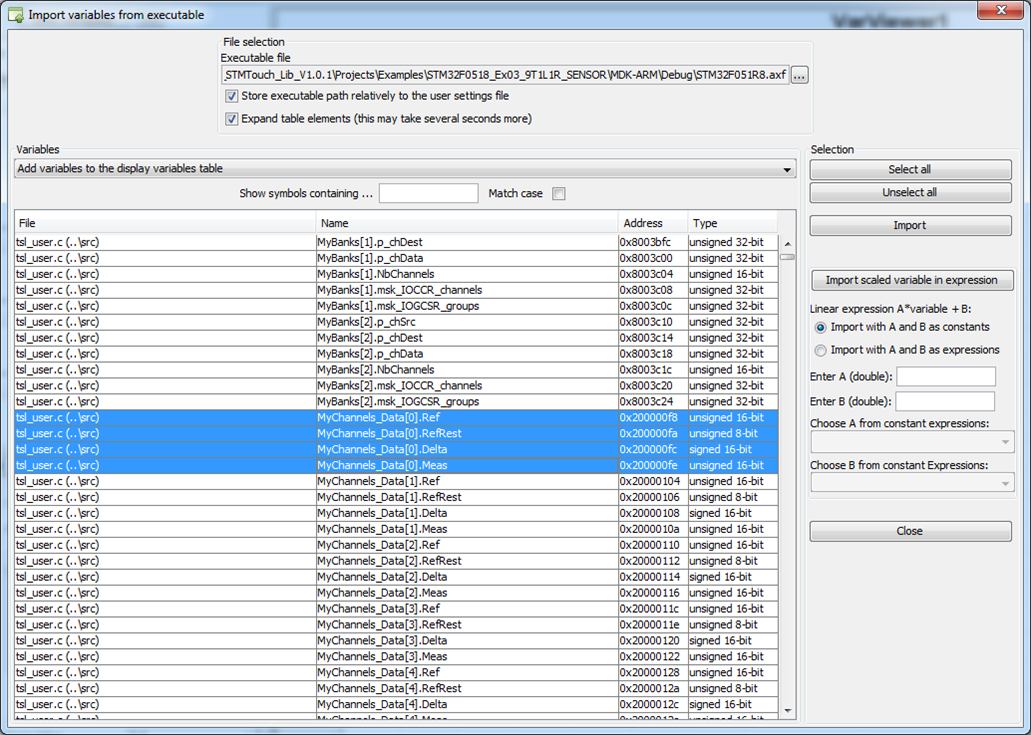
- In the Import variables from executable window (shown in the figure below):
- Select the application Elf file (.elf, .out or .axf) through the Executable file field using the Browse button
- Check the Expand table elements box.
- Check the Store executable path relatively to the user settings file box to use a relative path.
- Enter ‘Ref’ in the Show symbol containing... text box.
- Select Add variables to the display variables table in the Variables list box.
- Select the ‘.Ref’ ended variables and click on the Import button or Ctrl+Click to operate an noncontinuous multi-selection.
- Repeat step d) and f) with ‘Delta’.
- Repeat step d) and f) with ‘StateId’
- Click on the Close button.
Once imported, the variables must be assigned to the viewer in order to be displayed. Follow the steps listed below:
- As described previously, select some variables in the Display Variables settings table.
- Right-click in the table and select Send To →VarViewer1 or drag them directly to the right viewer.
- In the Viewers settings window dock, right-click in the greyed part and select New VarViewer. A new VarViewer2 tab appears.
To ease the navigation, the VarViewer windows can be renamed with the name of the monitored variables (right click and rename).
Variables can be displayed as a curve, as a bar graph or in a table. The display in table is recommended for variables with very slow variation. Curve and bar graph suit for variables with quick variation (see examples in the figure below).
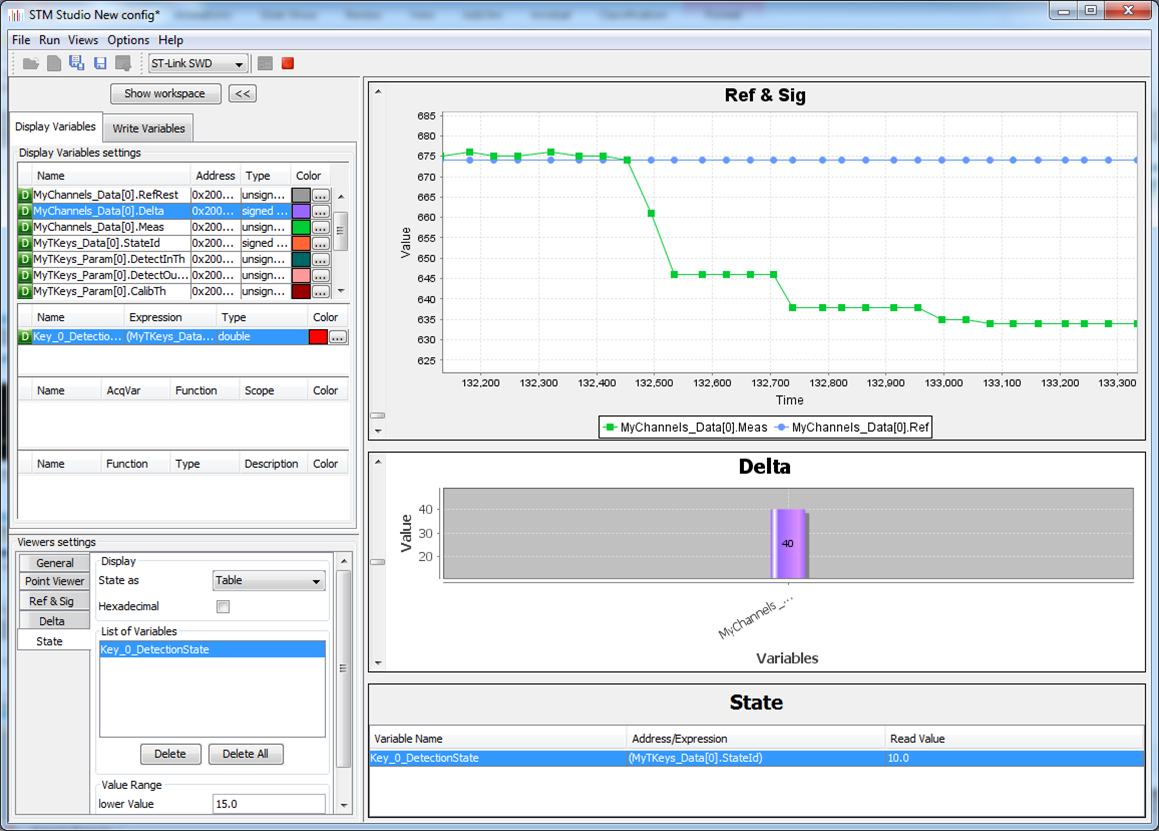
The value range for each VarViewer window can be adjusted:
- The Delta depends on the application sensitivity and can be positive or negative.
- The State varies from 0 to 19 (refer to TSL_StateId_enum_T in tsl_types.h for the meaning of this value).
- The reference depends on CX/CS.
Connect a PC to the application with the selected binary code downloaded in the microcontroller (through a USB cable and the appropriate hardware tool such as an ST-LINK). Click on the green arrow  or select the “Run/Start” menu to start the monitoring.
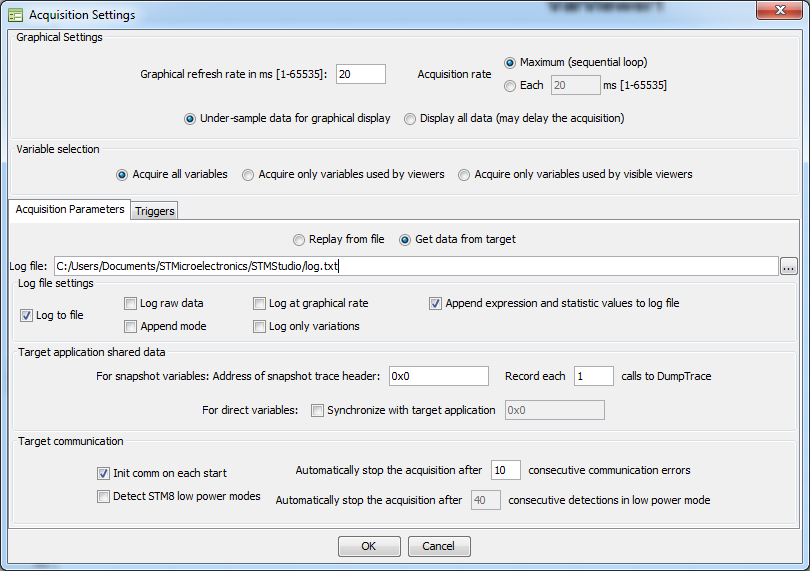
- Open Options and Acquisition Settings window.
- Check the Log to file box and set the log file path.