This design example shows how to perform a simulation with HyperLynx on MCU Discovery board with STM32F746 (32F746GDISCOVERY). The SDRAM data bus are the critical signals on this PCB board to be analyzed.
SDRAM signals
The FMC controller, and in particular the SDRAM memory controller, has many signals, most of them have similar functionalities and work together. The controller I/O signals can be split in four groups as follows:
Address group: consists of row and column address and bank address
Command group: includes the row address strobe (NRAS), the column address strobe (NCAS), and write enable (SDWE)
Control group: includes chip select bank1 and bank2 (SDNE0/1), clock enable bank1 and bank2 (SDCKE0/1), and output byte mask for write access (DQM)
Data group/lane contains x8/x16/x32 signals and the data mask (DQM)
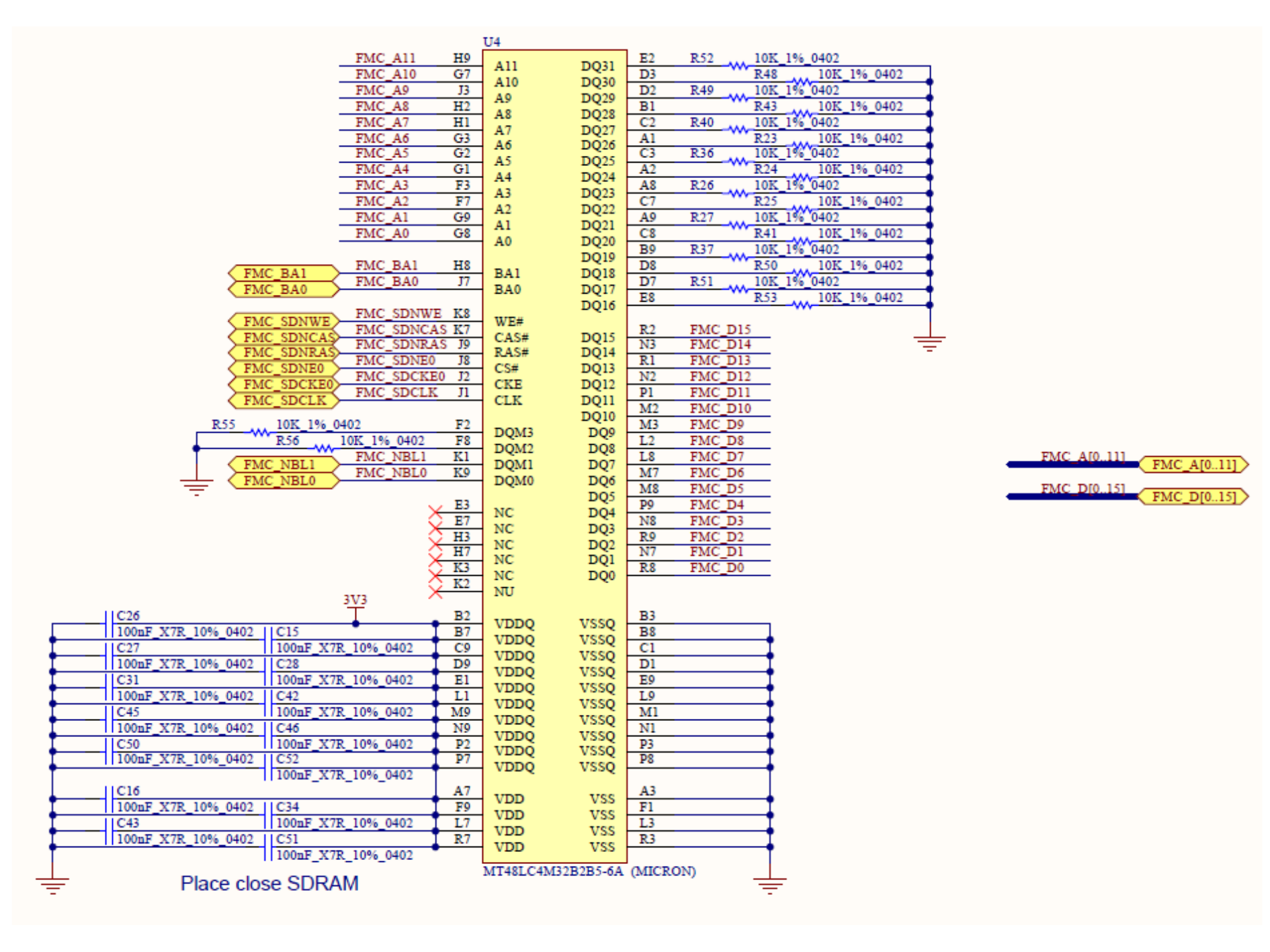
In this Discovery board the memory used is an SDRAM with x16 bus widths and have two data group lanes from Micron (part number: MT48LC4M32B2B5-6A) as shown in the figure below.Figure 5. SDRAM schematic
SDRAM simulation
The following sequence describes the steps for design and simulation
.
Schematics design
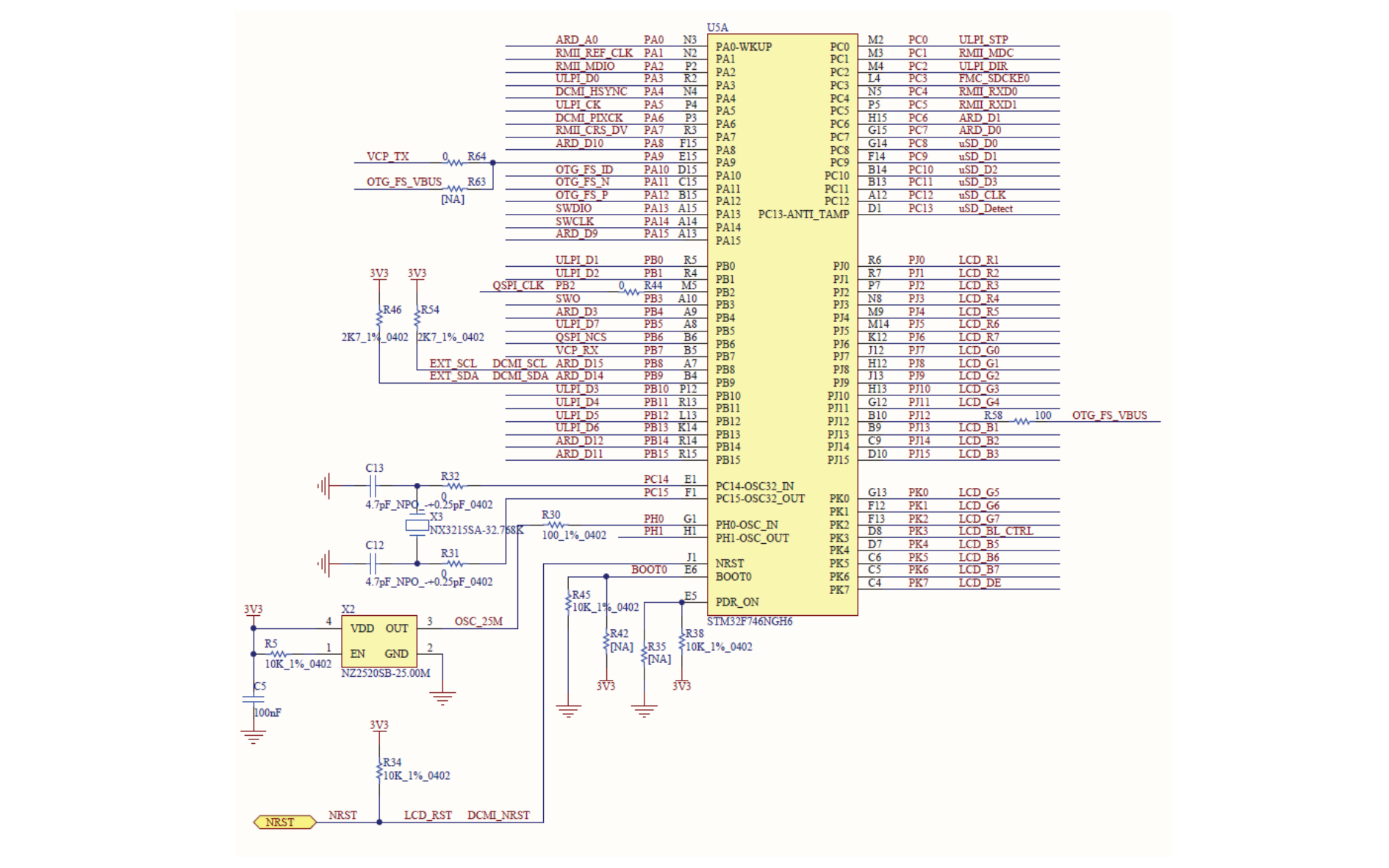
The schematic shown in Figure 5 SDRAM schematic is the connected signal between the SDRAM and the STM32F746 (FMC_xx).
PCB design
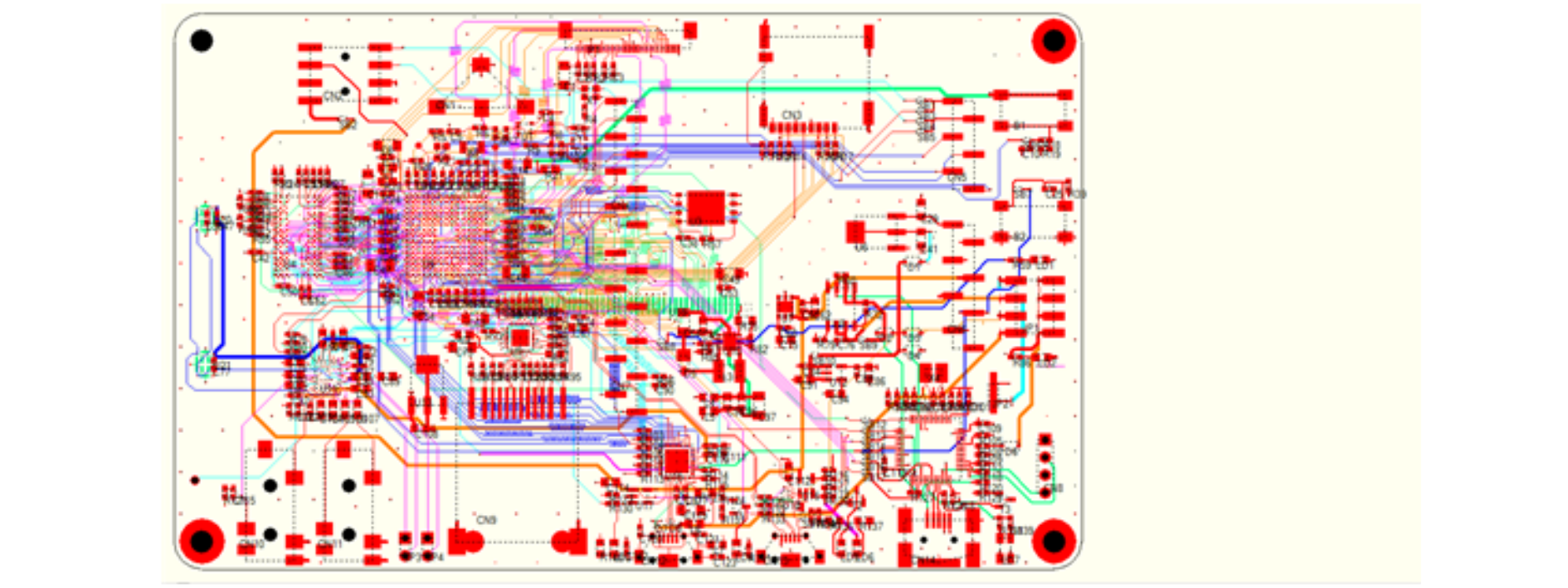
Use the gerber viewer Gerbv 2.6.1 to see the PCB design. Figure 6 32F746GDISCOVERY schematic shows the PCB design of the CPU board with STM32F746 and SDRAM chips are placed close to each other, where SDRAM is on the left side.Figure 6. 32F746GDISCOVERY schematic
Translate PCB board file to simulation file
Using the HyperLynx simulation tool from Mentor Graphics® to do PCB board simulation. Run HyperLynx and open the MB1191B-V14.paf file, and then translate it to MB1191B- V14.hpy file for simulation as shown in Figure 7 32F746GDISCOVERY PCB.
Note:
This Discovery board layout was designed with Zuken CADStar, so to do simulation with HyperLynx, use PAF file with the same file name.
Select the signal to simulate.
Open the MB1191B-V14.hpy file.Figure 7. 32F746GDISCOVERY PCB
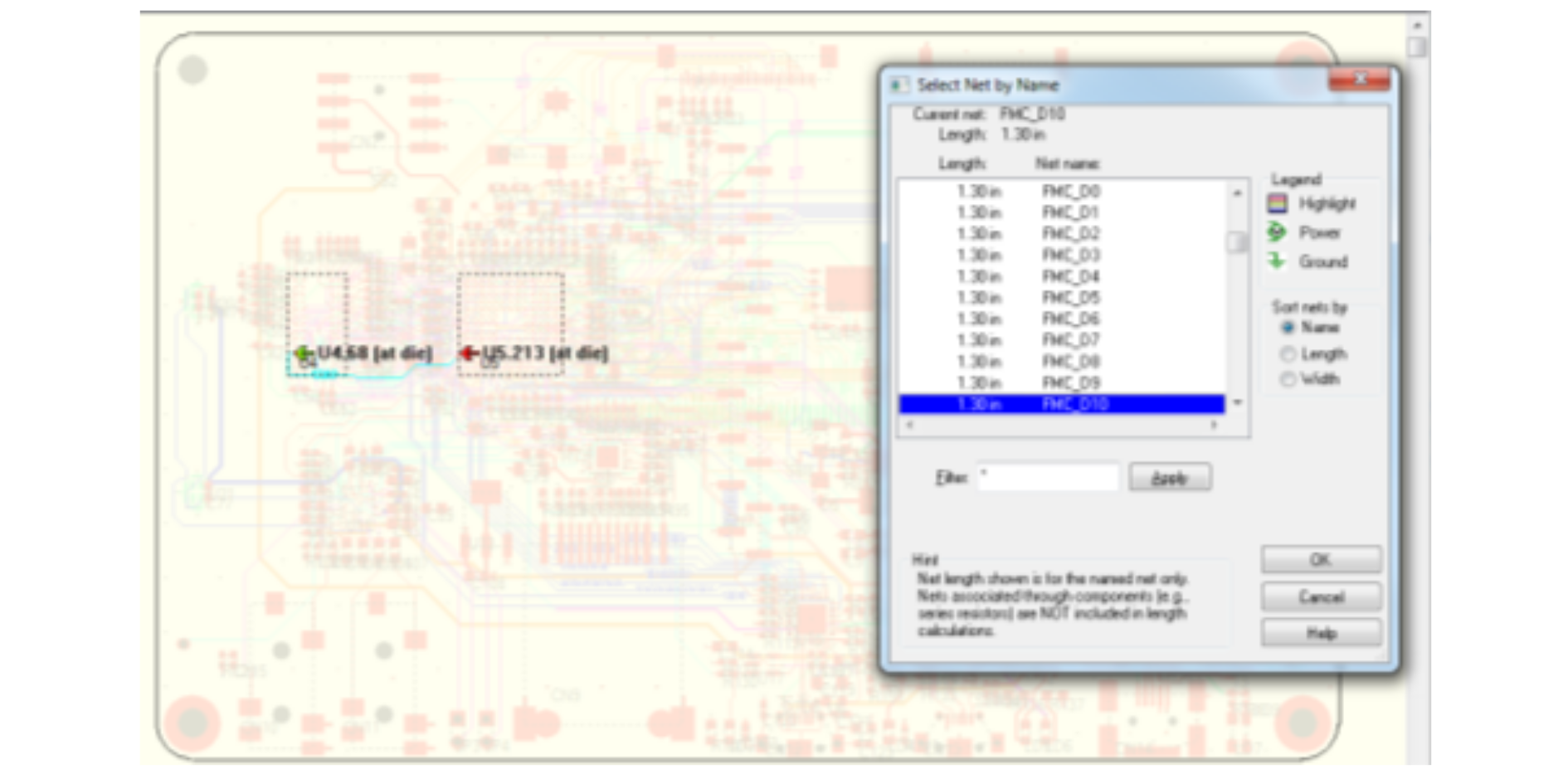
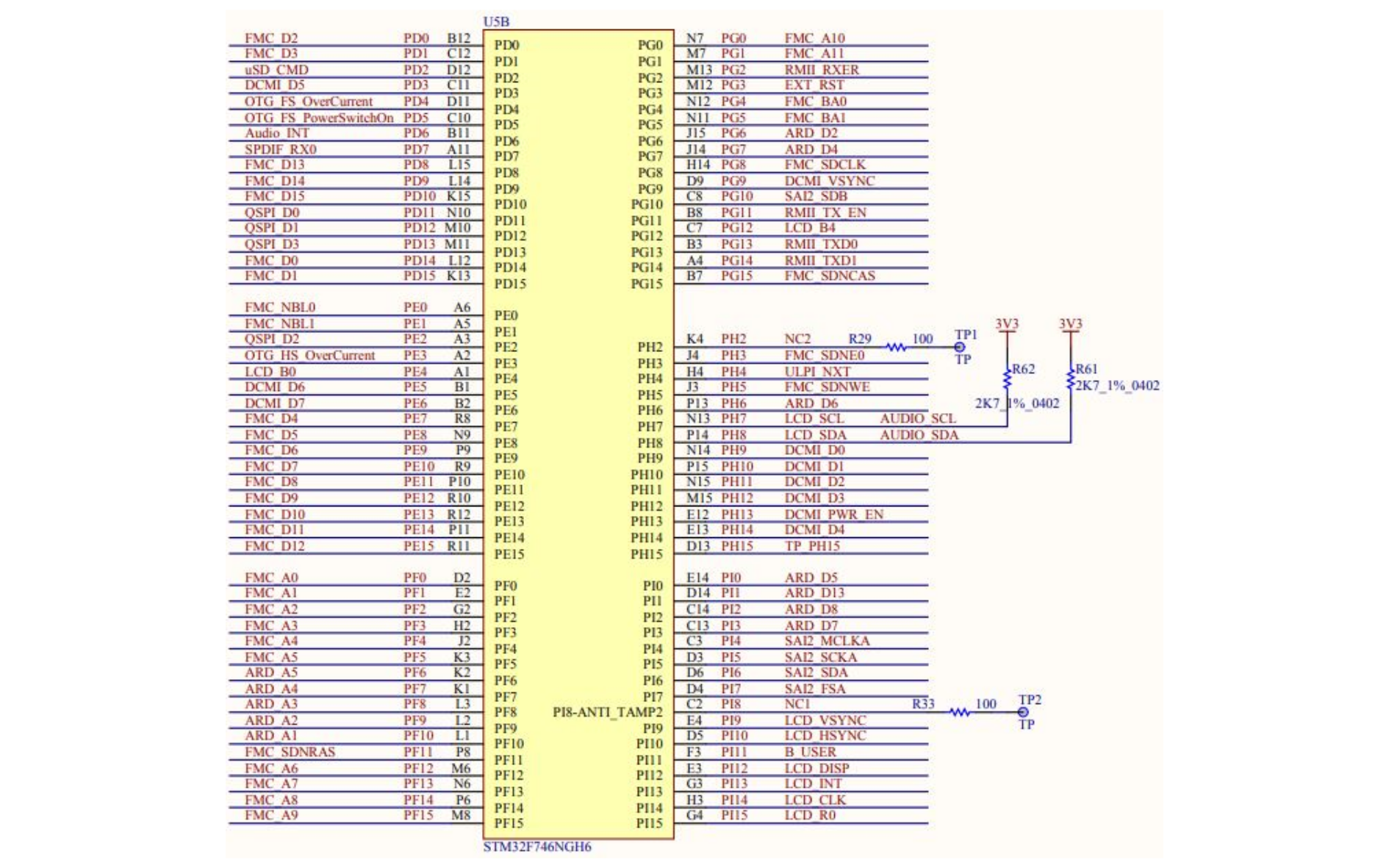
Select the signal to simulate (for example SDRAM FMC_D10). Go to Select in upper menu and choose Net by Name for SI Analysis (see Figure 8 Signal selection).
Figure 8. Signal selection
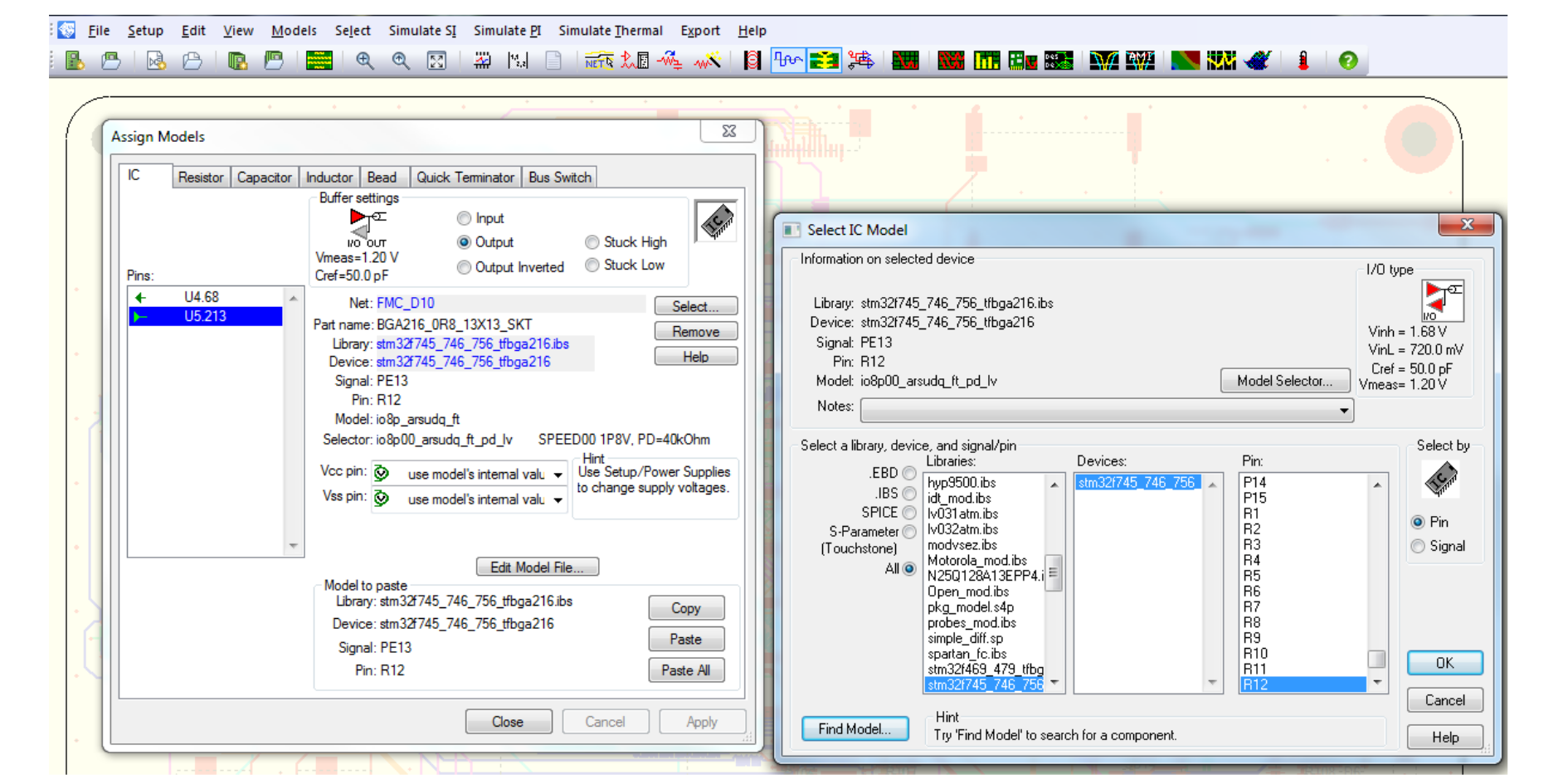
Assign IBIS model for STM32F746 and MT48LC4M32B2B5.
The IBIS model is usually available on the manufacturer’s website. The IBIS Model file associated with STM32F746 can be downloaded from the STMicroelectronics web site at www.st.com and for MT48LC4M32B2B5 can be downloaded from Micron website. After downloading the model for each IC and add it to the HyperLynx lib path. Assign the IBIS model for each signal vs IC Figure 7 32F746GDISCOVERY PCB.
Figure 9. Assign IBIS model
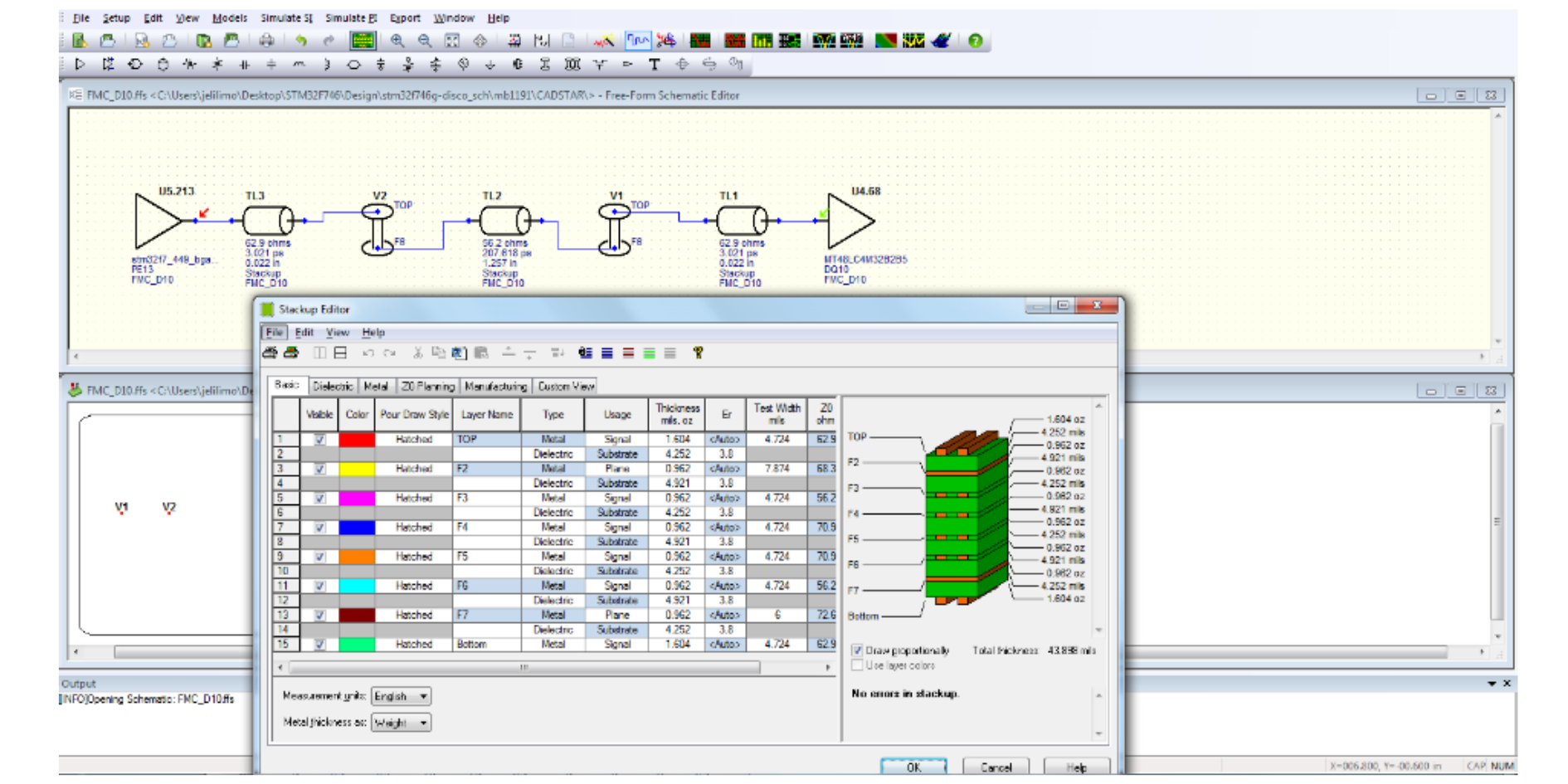
Export the selected signal to the free-form schematic and configure the stack- up information.Figure 10. Free-form schematic
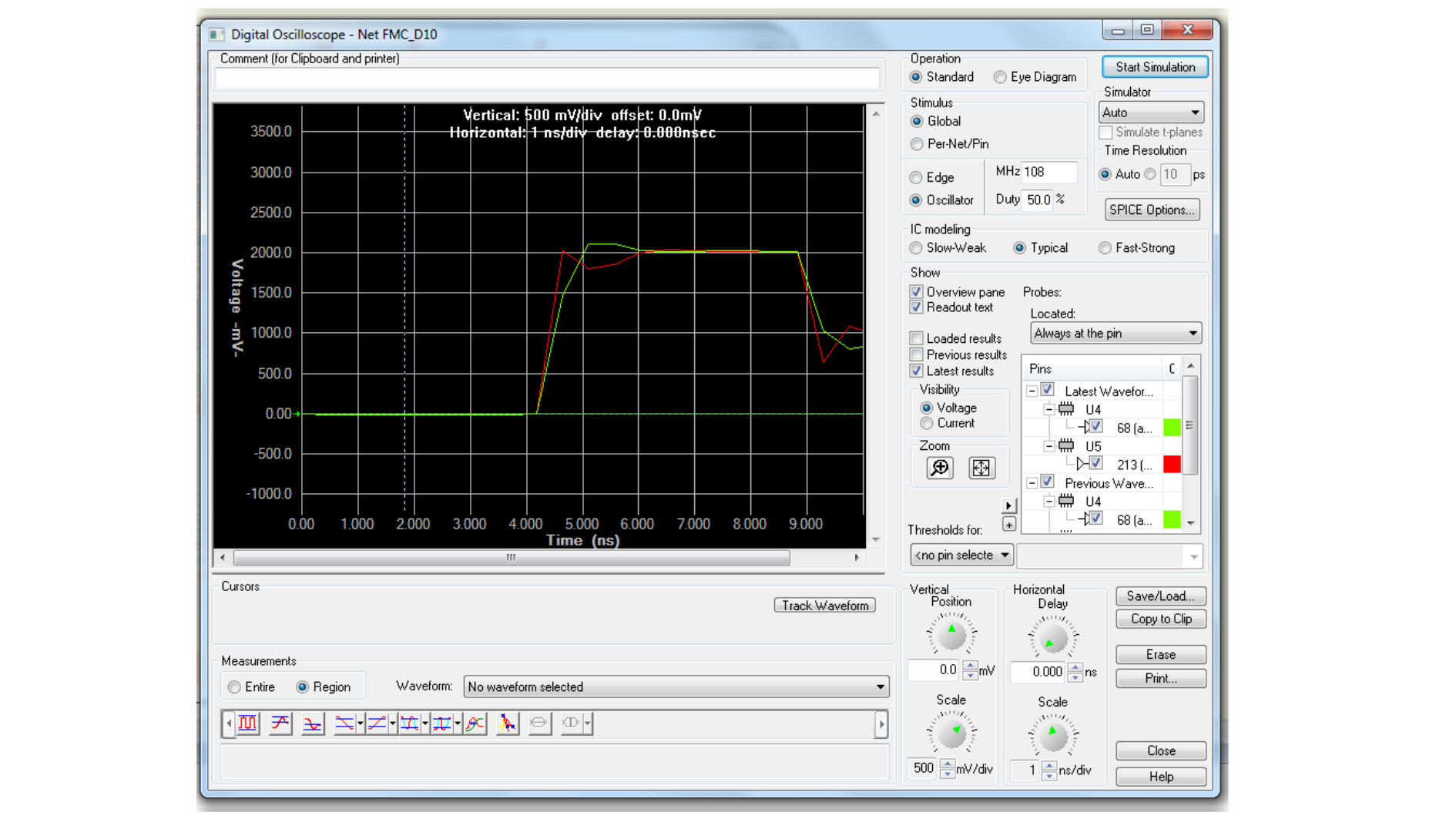
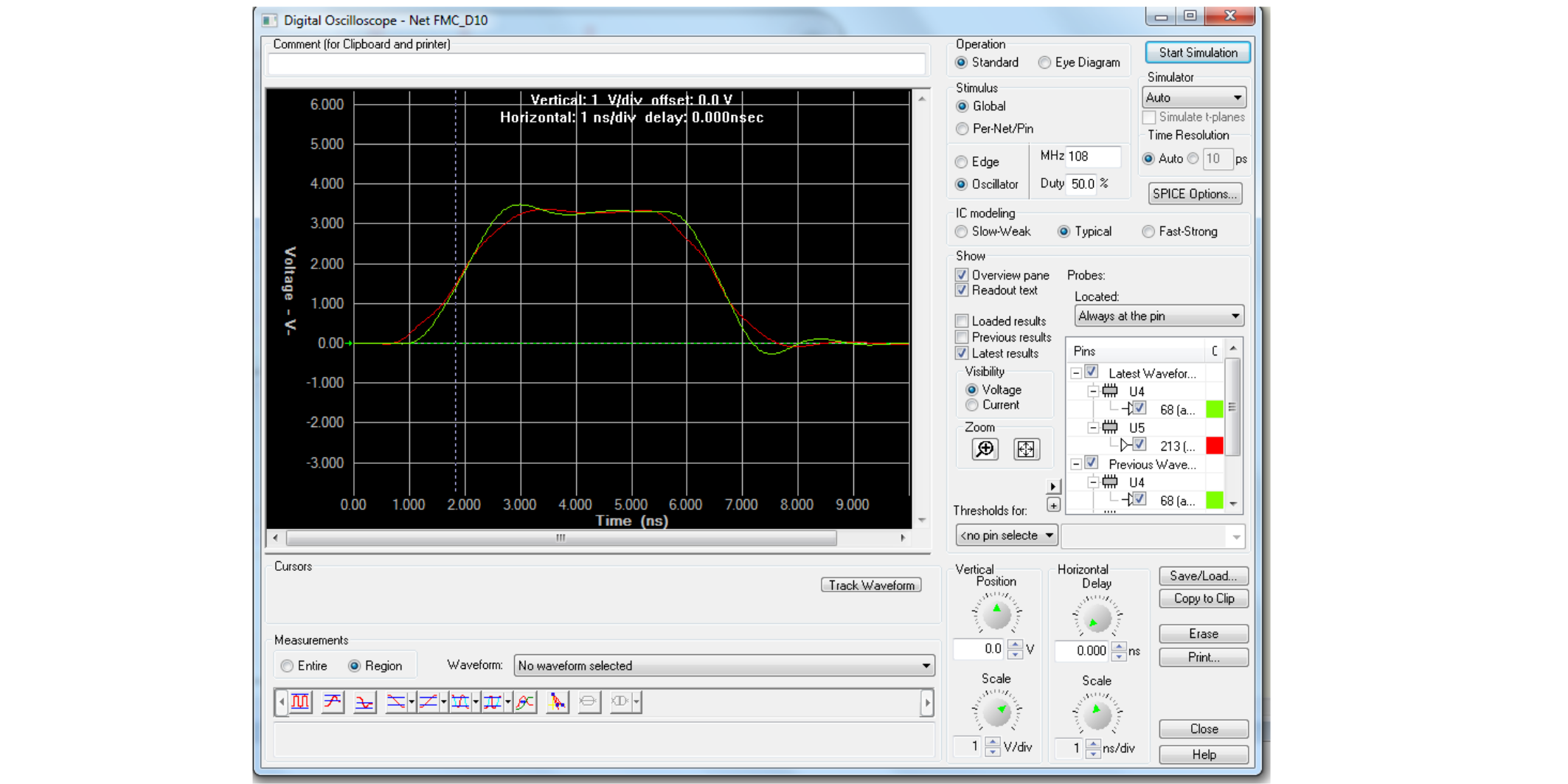
Compare and analyze the results by changing IO speed selection for STM32F746 (in red FMC_SDRAM coming out of STM32F7 and in green waveform at SDRAM input).
In the previous steps, the IO speed was set to 0x00. The data signal in red coming out of the STM32F746 is already distorted: square shape with reduced swing and straight slope due to IO speed limitation. The maximum I/O frequency with this setting is 8 MHz and rise time of 100 ns. This can be explained by output signal transitions under the loading conditions Cref and Rref for IO buffer model at lower speed 0x00.
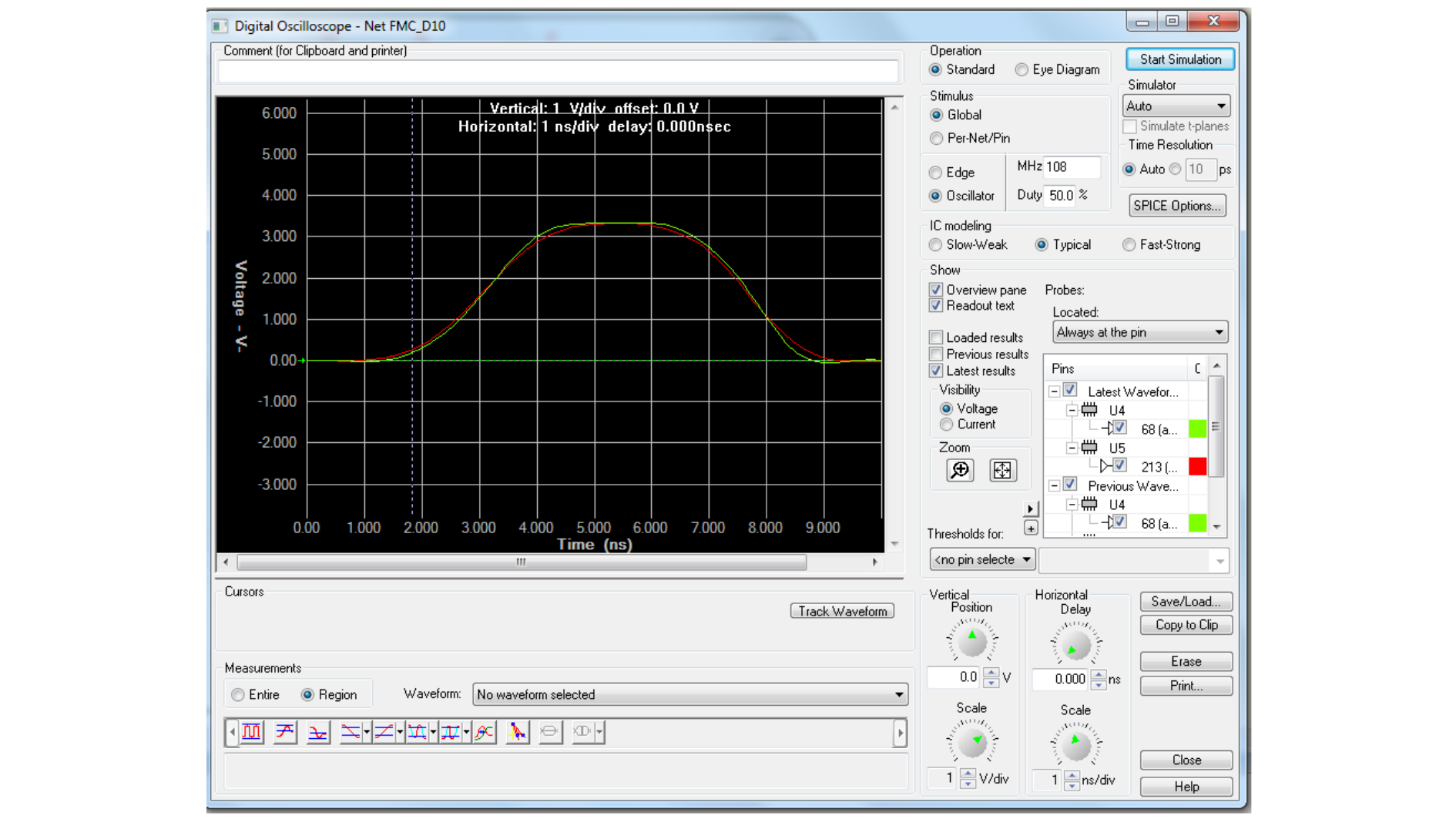
In order to improve the shape of the waveform at the output of STM32F476, the IO speed must be changed to handle more signal frequency content to 0x10 (IO maximum frequency of 100 MHz) and 0x11 (IO maximum frequency of 180 MHz) (see Figure 12 Waveform with I/O speed of 0x10).Figure 12. Waveform with I/O speed of 0x10
Figure 13. Waveform with I/O speed of 0x11
Use the right configuration of IOs speed to match frequency content of target signal for a good SI without any distortion.
Run HyperLynx and open the MB1191B-V14.hpy file for simulation.
Select the signal to simulate.
Select the clock signal to simulate (for example QSPI_CLK/ PB2). Go to Select in upper menu and choose Net by Name for SI Analysis (see Figure 8 Signal selection).
Figure 17. Signal selection
Assign IBIS model for STM32F746 and N25Q128A13EF840E.
The IBIS model is usually available on the manufacturer’s website. The IBIS model file associated with STM32F746 can be downloaded from the STMicroelectronics web site at www.st.com and for N25Q128A13EF840E can be downloaded from Micron web site.
After downloading the model for each IC and add it to the HyperLynx lib path. Assign the IBIS model for each signal vs IC Figure 8 Signal selection.
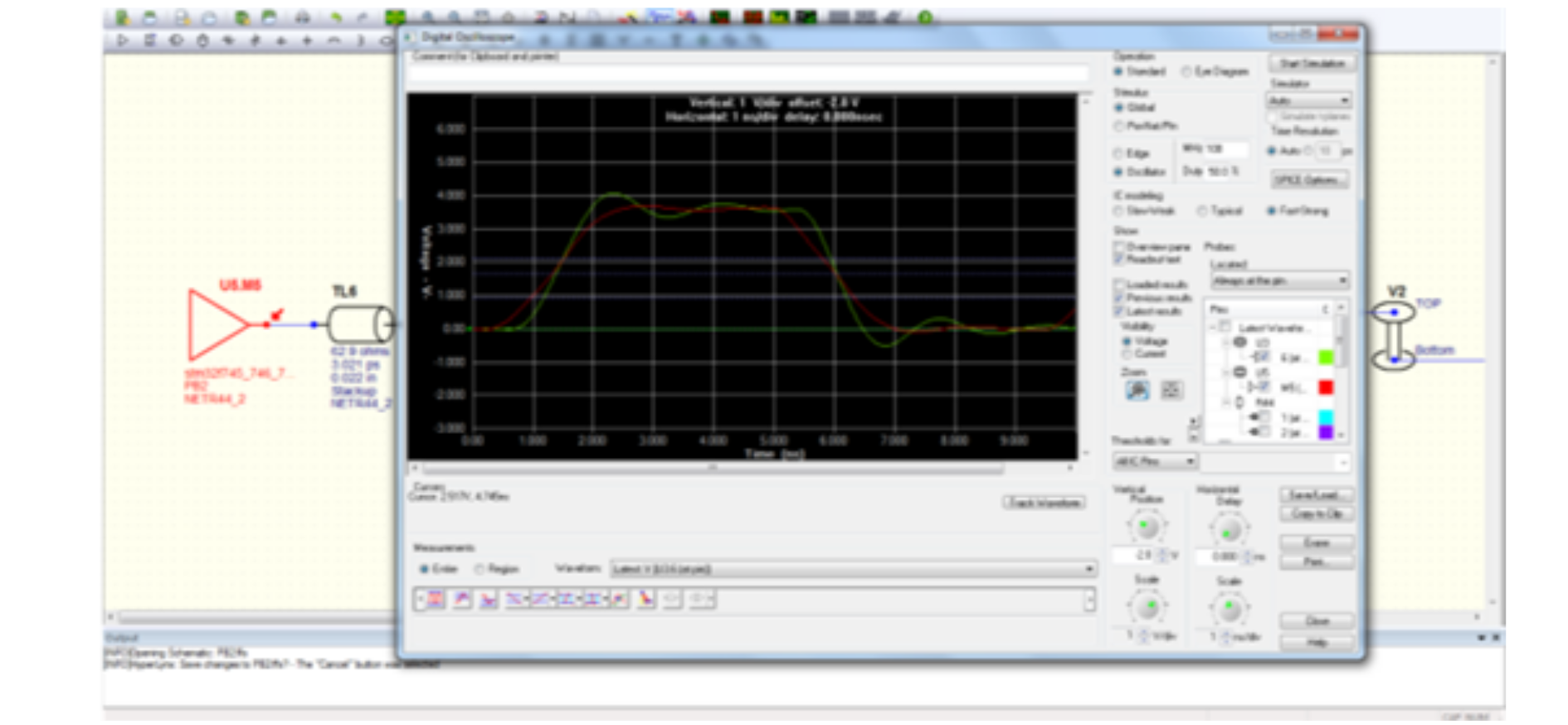
Export the selected signal to the free-form schematic and configure the stack- up information.Figure 18. Free-form schematic QSPI_CLK
Configure and start the simulation.
Set the frequency to 108 MHz and the Duty to 50% (see figure below)
Figure 19. Waveform with R44 = 0Ω
Compare and analyze the results by changing R44 serial resistor.
In the previous steps, the series source termination resistor was 0Ω, the green waveform (at input of QSPI memory) is showing an overshooting and undershooting due to mismatching of the characteristic impedance. This type of termination requires that the sum of the buffer impedance and the value of the resistor be equal to the characteristic impedance of the line.
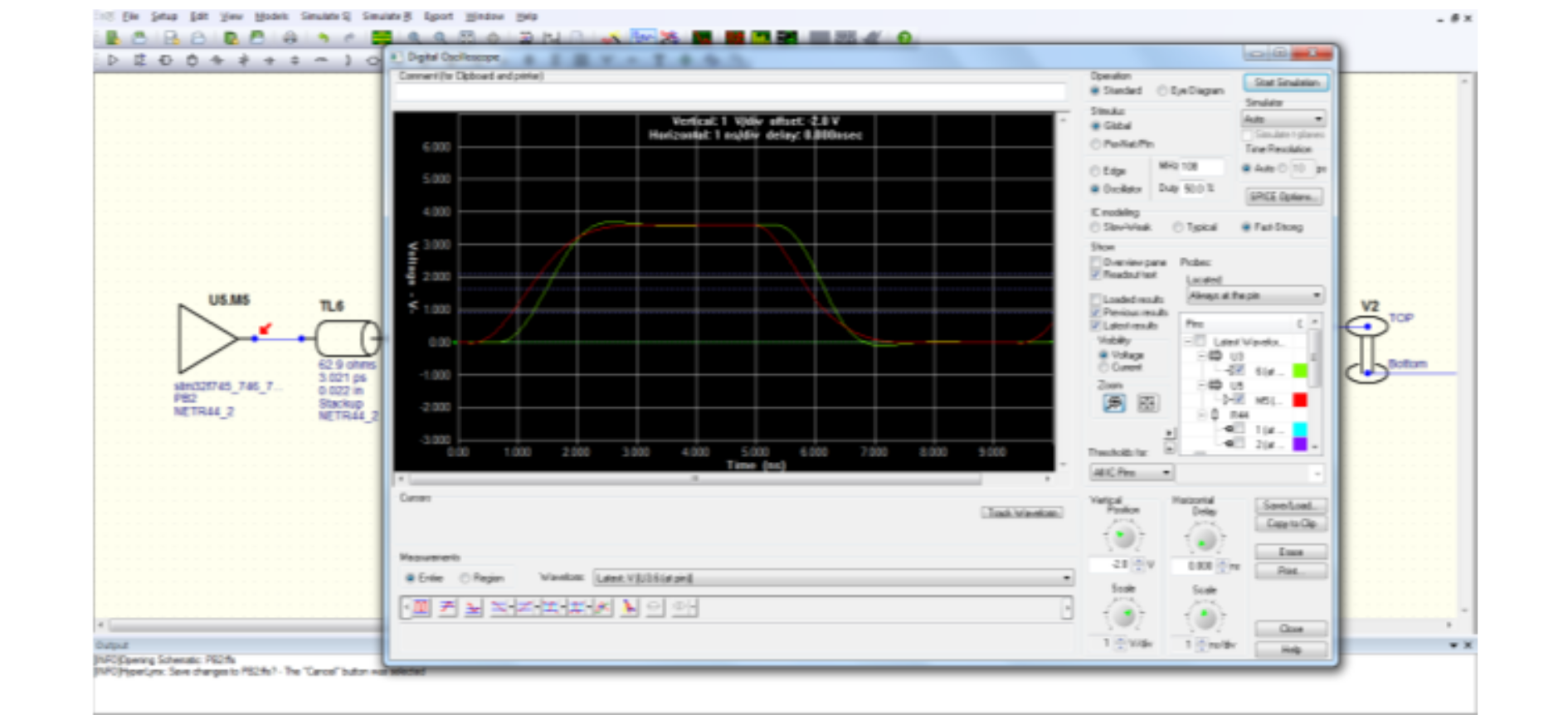
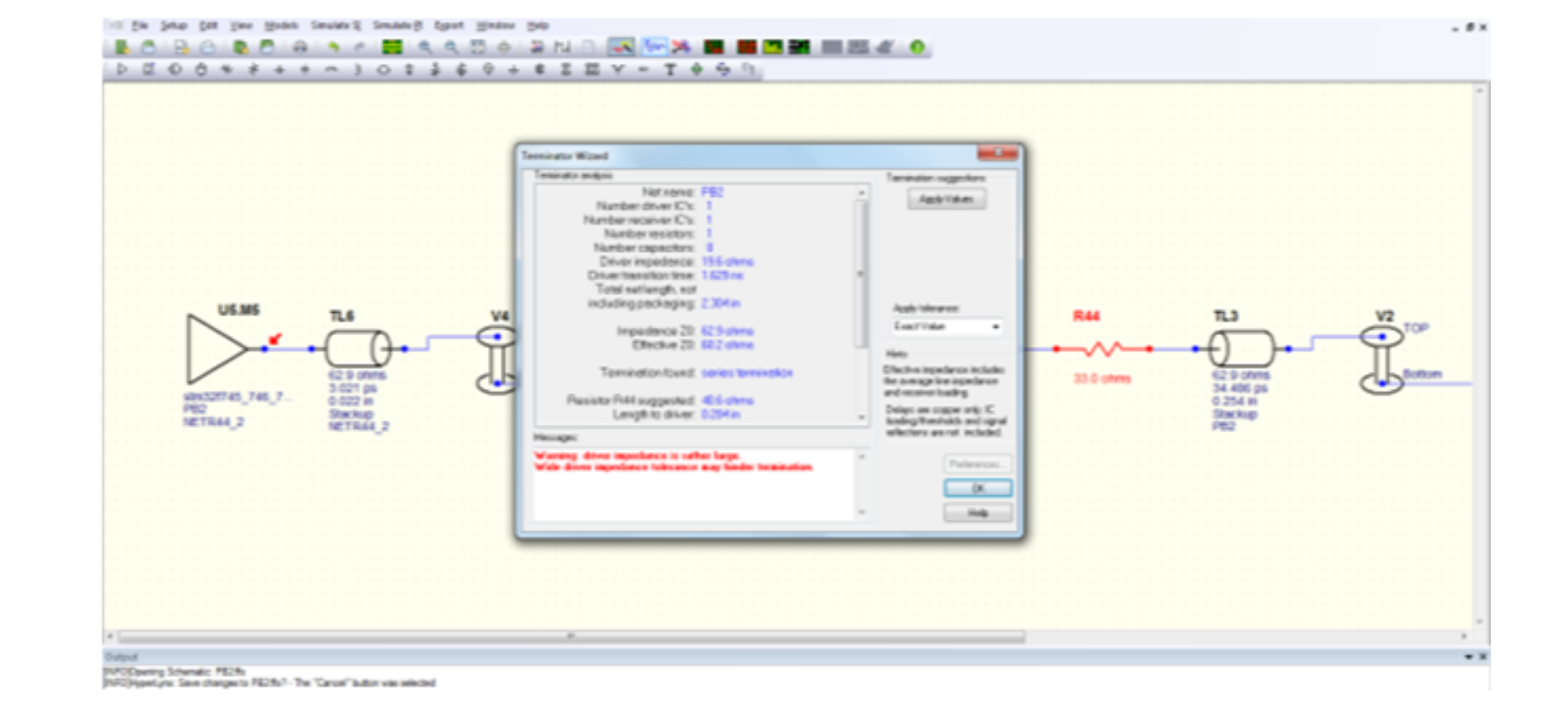
An improvement of shape of clock output from STM32 can be observed. Else, the Terminator Wizard can be run to analyze the selected net and suggest the optimum termination values for R44.
Figure 21. Terminator Wizard menu
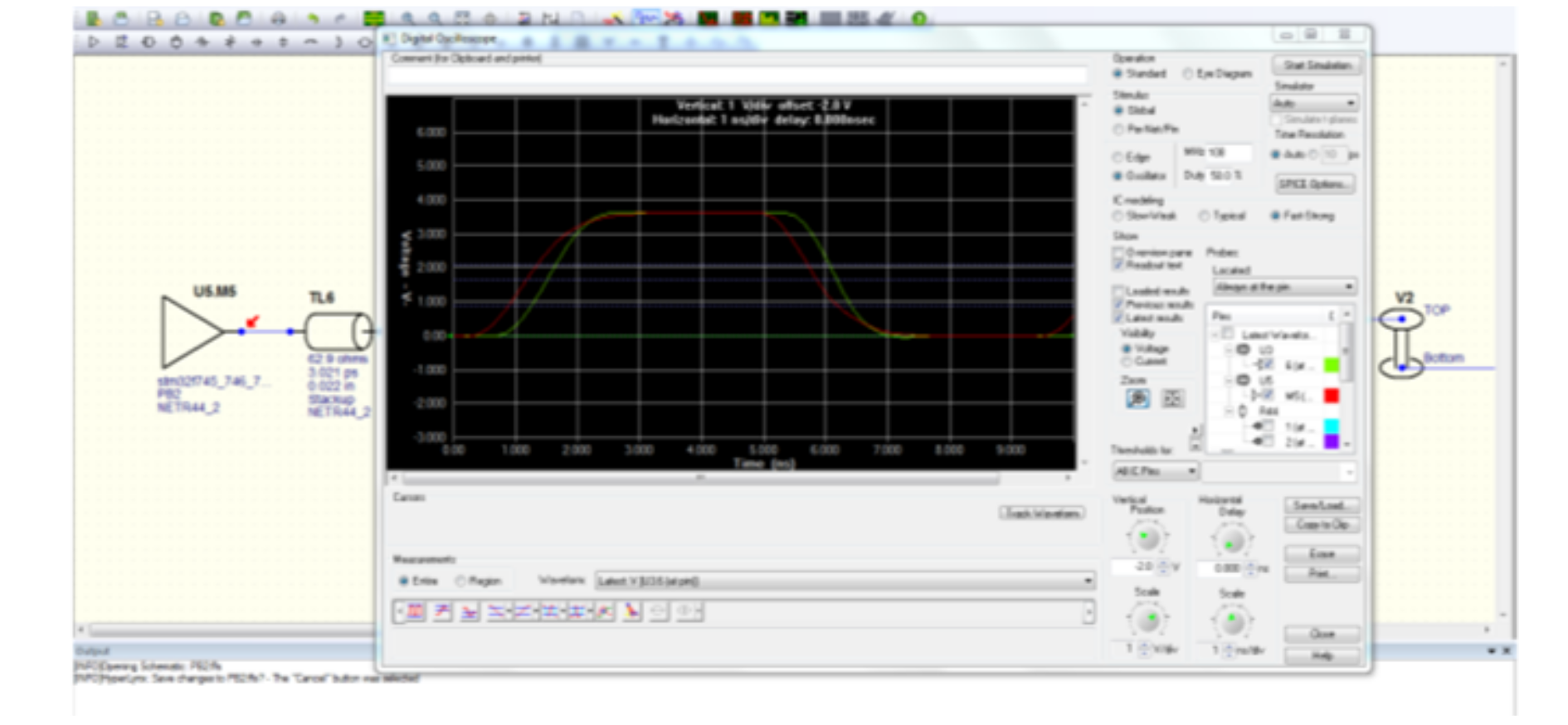
When "Apply values" is selected, the serial resistor R44 takes the value in this schematic, which is 40.6Ω. See the shape of the wave with simulation in Figure 22 Waveform with R44 = 40.6Ω.
Figure 22. Waveform with R44 = 40.6Ω
The Termination Wizard analyzes the selected net, presents a list of trace statistics and makes suggestions for the optimum value of R. It takes into account the capacitive loading of the receiver ICs, total line length, and driver impedance.
 Use the right configuration of IOs speed to match frequency content of target signal for a good SI without any distortion.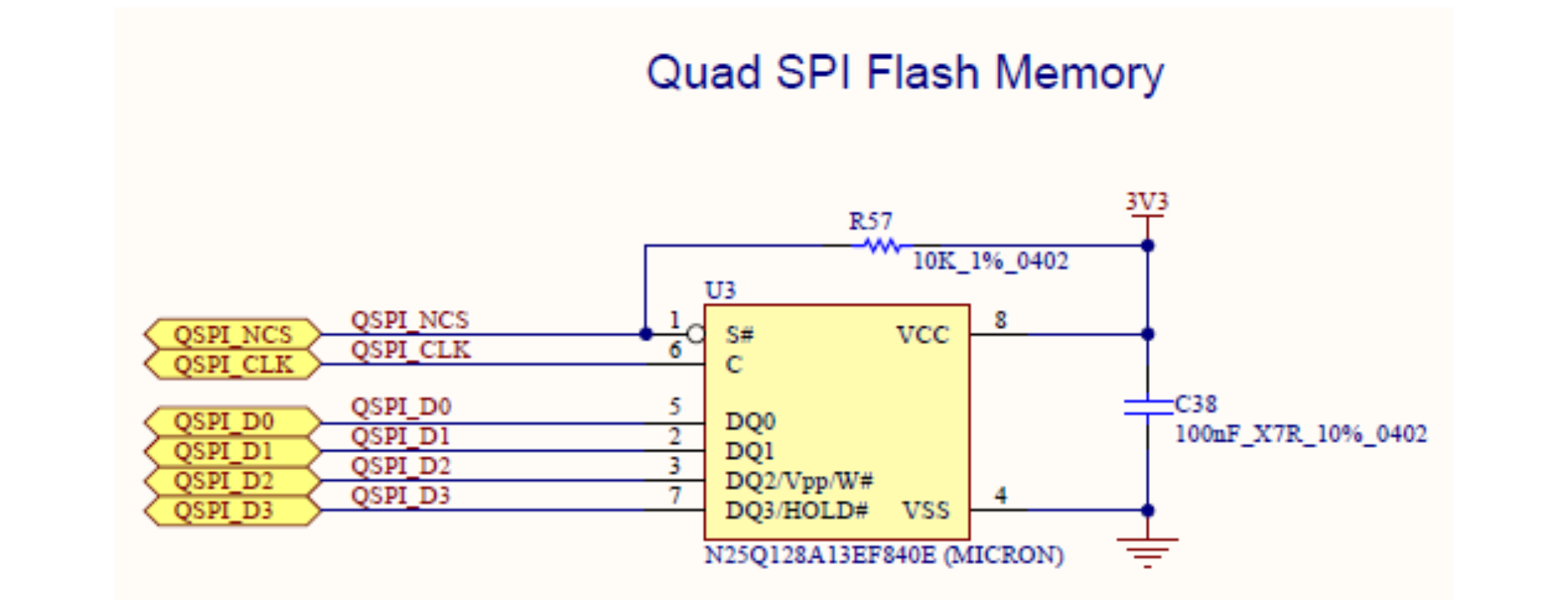

 An improvement of shape of clock output from STM32 can be observed. Else, the Terminator Wizard can be run to analyze the selected net and suggest the optimum termination values for R44.
 When "Apply values" is selected, the serial resistor R44 takes the value in this schematic, which is 40.6Ω. See the shape of the wave with simulation in Figure 22 Waveform with R44 = 40.6Ω.
 The Termination Wizard analyzes the selected net, presents a list of trace statistics and makes suggestions for the optimum value of R. It takes into account the capacitive loading of the receiver ICs, total line length, and driver impedance.