Security features available only when TrustZone is enabled
- GTZC secure watermark protection
- HDP (hide protection) option bytes
- Flash memory block-based secure protection
- RDP level 0.5
- RSS and SFI
- BOOT_LOCK
- Secure interrupts
- GTZC secure protection
As mentioned in Overview, the TrustZone is disabled by default in all STM32L5/U5/U3 devices. The TrustZone is activated by setting the TZEN option bit.
The TrustZone deactivation must be done in parallel to an RDP regression (see RDP level 0.5). This assumes that the system is already in RDP level 1 or RDP level 0.5 (regression from level 0.5 is applicable only to STM32L5). See RDP level 1 and RDP level 0.5 for the associated recommendations to take into account.
After the TrustZone deactivation, all features mentioned in Security features available only when TrustZone is enabled are no longer available and all secure registers are RAZ/WI. The GTZC can still be used to configure the privilege access.
Following a regression from TZEN = 1 to TZEN = 0, the sample is virgin, corresponding to the production state.
For STM32L5 only, if the BOOT_LOCK option bit is set, it cannot be cleared. After clearing TZEN and setting it again, the BOOT_LOCK remains set and the unique boot entry address is the address programmed in SECBOOTADD0[24:0] option bytes.
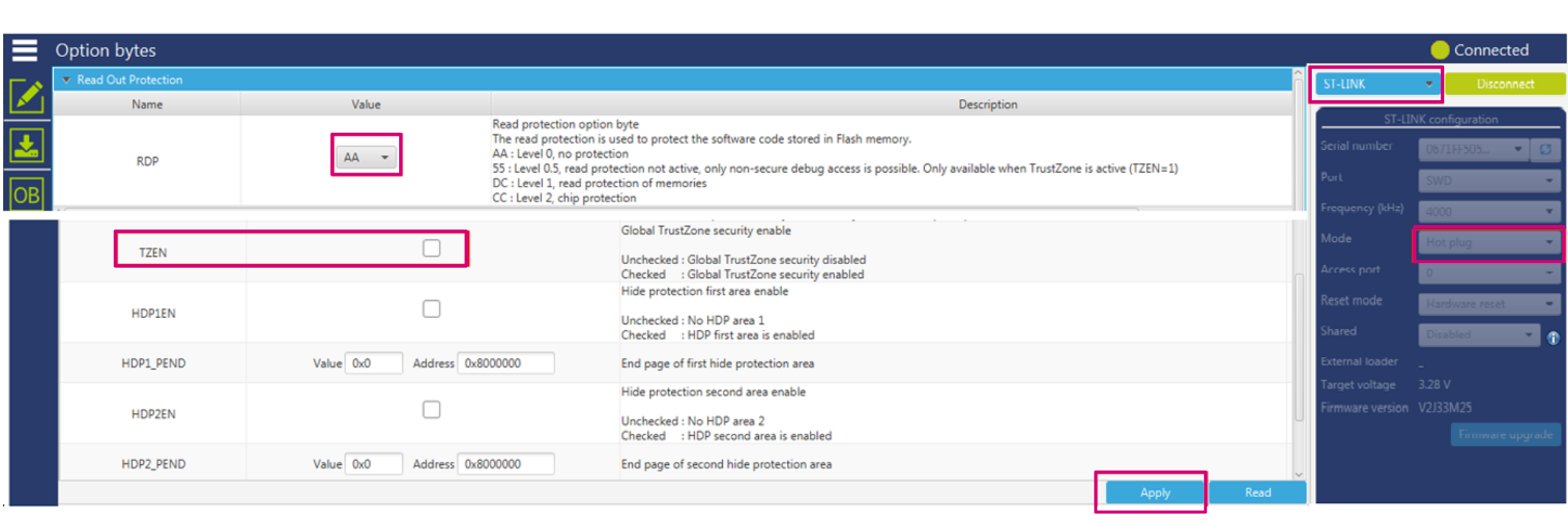
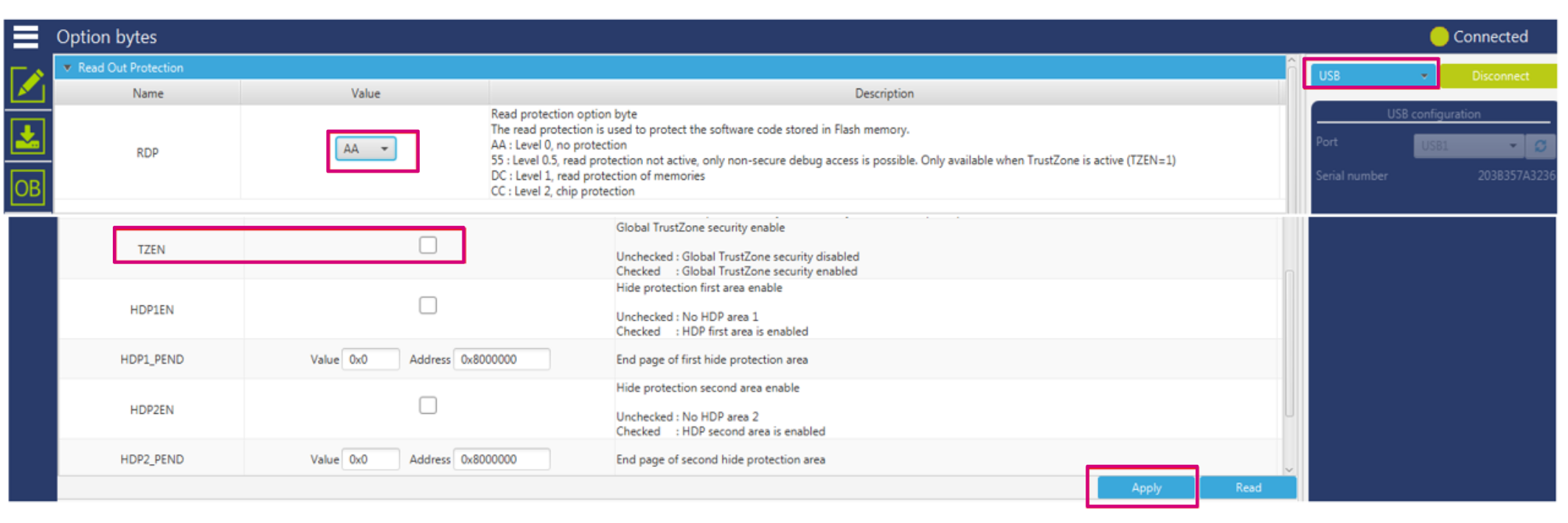
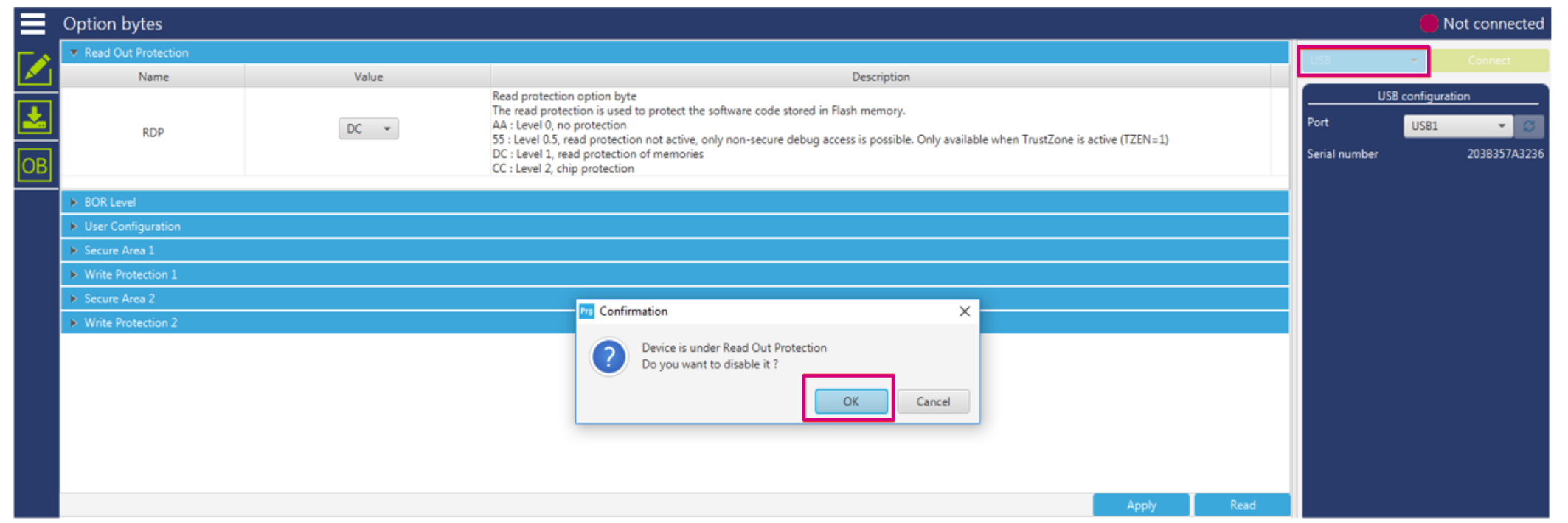
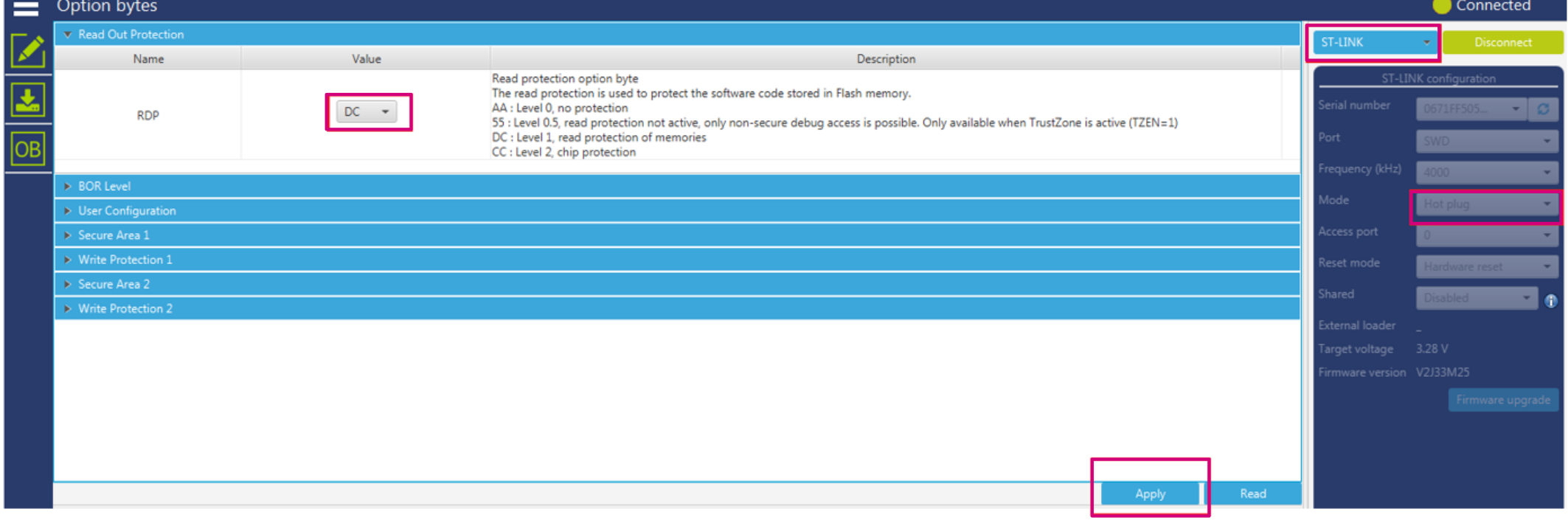
The following sequence is needed to perform a TZEN and RDP regression with a boot from user flash memory.


If the TZEN and RDP regression with a boot from user flash, was not successful due to the fact that the first step was not respected (secure application not calling a nonsecure application), the only way to do a regression is with a boot from RSS as shown in the next section.
This section explains how to change the boot on STM32L5/U5/U3 ST boards.
For STM32U3: ADD[24:0] option byte in FLASH_BOOT1R is configured to 0x17F1E0 value at 0x0BF8 F000 address (RSS address).
Regression from RDP level 0.5 to level 0 is possible only with STM32L5. For STM32U5/U3, the RDP level must be first raised from level 0.5 to level 1, then revert from level 1 to level 0, in parallel with TZEN deactivation.


> STM32_Programmer_CLI.exe -c port=USB1 -tzenreg
-------------------------------------------------------------------
STM32CubeProgrammer v2.8.0
-------------------------------------------------------------------
USB speed : Full Speed (12MBit/s)
Manuf. ID : STMicroelectronics
Product ID : DFU in FS Mode
SN : 207E31953536
FW version : 0x011a
Device ID : 0x0482
Warning: Device is under Read Out Protection
Disabling TrustZone...
Disabling TrustZone successfully
This feature is available in STM32U5/U3. The OEM1 RDP lock mechanism is active when the OEM1LOCK bit is set. It blocks the RDP level 1 to RDP level 0 regression.
>STM32_Programmer_CLI.exe -c port=swd mode=hotplug -lockRDP1 0xABCDEFAB 0x12345678
-------------------------------------------------------------------
STM32CubeProgrammer v2.8.0
-------------------------------------------------------------------
Lock RDP1 password successfully done
>STM32_Programmer_CLI.exe -c port=swd mode=hotplug -ob rdp=0xDC
-------------------------------------------------------------------
STM32CubeProgrammer v2.8.0
-------------------------------------------------------------------
Option Bytes successfully programmed
> STM32_Programmer_CLI.exe -c port=swd mode=UR -unlockRDP1 0xABCDEFAB 0x12345678 -ob RDP=0xAA TZEN=0
-------------------------------------------------------------------
STM32CubeProgrammer v2.8.0
-------------------------------------------------------------------
Unlock RDP1 password successfully done
Option Bytes successfully programmed
For STM32U3, the same CLI commands can be done but with a 128-bit key. For example OEM1Key [31:0] = 0xABCDEFAB , OEM1Key[63:32] = 0x12345678, OEM1Key [95:64] = 0xABCDEFAB and OEM1Key[127:96] = 0x12345678.
For STM32U3, once set, the OEM key lock mechanism cannot be disabled. This means that the OEM key can be modified but never cleared.
In order to reach the best protection level, it is recommended to activate TrustZone and to set the RDP level 2 with password authentication regression enabled.
The RDP protects the flash main memory, the option bytes, the backup registers, the backup RAM (STM32U5 only), OTFDEC region (when available), ICACHE, DCACHE, and SRAMs. Two keys (OEM1KEY and OEM2KEY) can be defined in order to lock the RDP regression. When TrustZone is activated, the CPU is split into secure and nonsecure zones, with a set of protections described in previous sections.
This section demonstrates how to practice the RDP level transitions using the STM32CubeProgrammer CLI when OEM1KEY and OEM2KEY are provisioned to unlock RDP regressions on STM32U5.
For more details on RDP transitions with OEMxKEY, refer to the document AN5347_General-info.html#id_13614__entry_vrc_1mc_4qb and AN5347_General-info.html#id_13614__entry_t3w_t4m_g2c.
In this STM32U5 example, when the CPU is secure, the RDP regression is done through the RSS. This can be performed by connecting the PH3_BOOT0 PIN to VDD on the board. The table below summarizes the transition sequences detailed in sections linked in the first column (when the CPU is nonsecure, all these steps are applicable except the transition to/from level 0.5).
| Step number and title | Description | Comments |
|---|---|---|
| Step 1 - Provision OEM1KEY | Provision OEM1Key to unlock RDP1 to RDP0 regression ( | The user can choose any 64-bit key length except all 1 or all 0. When 0xFFFFFFFF 0xFFFFFFFF is used, the OEMxKEYs are cleared. |
| Step 2 - Provision OEM2KEY | Provision OEM2Key (OEM2KEY=0x21ABCDEF 0x22ABCDEF):
| |
| Step 3 - Check if OEMxKEYs are provisioned | OEM1LOCK and OEM2LOCK bits set to 1. | If OEMxKEYs are not well provisioned, the user must repeat the failed step 1 or step 2, and recheck again |
| Step4 - Set option byte TZEN = 1 | Set the CPU as secure. | TrustZone enabled |
| Step 5 - Set RDP level 2 | Rise RDP to level 2 (-ob rdp=0xCC).This shows that, when OEM2KEY is provisioned, the regression from RDP level 2 to level 1 is authorized. | Make sure that Step 2 is passed, otherwise the device is no more accessible. |
| Step 6 - Unlock RDP level 2 with OEM2Key | Authorize RDP level 2 to level 1 regression. The correct OEM2KEY must be provided. |
|
| Step 7 - Set RDP to level 1 | Regression of RDP to level 1 is now possible (unlocked by Step 6). | If not successful, it means that RDP level 2 to level 1 regression is not unlocked with the correct OEM2KEY. |
| Step 8 - Unlock RDP level 1 with OEM2 key | Enable the RDP level 1 to level 0.5 regression. | Be sure that, in the CLI, the option -unlockrdp1 is used with OEM2KY=0x21ABCDEF 0x22ABCDEF. |
| Step 9 - Set RDP level 0.5 | RDP level 1 to level 0.5 regression is now possible as OEM2Key is provided in Step 8. | - |
| Step 10 - Raise RDP from level 0.5 to level 1 | - | As an RDP level 0.5 to level 0 regression is not possible, the user must first rise the RDP to level 1. |
| Step 11 - Unlock RDP level 1 with OEM1Key | The correct OEM1KEY must be provided. | - |
| Step 12 - Set RDP level 0 and reset TZEN = 0 | TZEN + RDP level 1 to level 0 regression | - |