AN5020 · Application noteIntroduction to digital camera interface (DCMI) for STM32 MCUs
Download .pdfOpen in the full document

DCMI examples based on STM32CubeMX

DCMI examples based on STM32CubeMX

This section details the following typical examples of DCMI use:
  • Capture and display of RGB data

    Data captured in RGB565 format with QVGA (320 × 240) resolution, stored in the SDRAM, and displayed on the LCD‑TFT

  • Capture of YCbCr data

    Data captured in YCbCr format with QVGA (320 × 240) resolution and stored in the SDRAM

  • Capture of Y-only data

    DCMI configured to receive Y-only data to be stored in the SDRAM

  • Resolution capture (YCbCr data format)

    Data captured in YCbCr format with a 1280 × 1024 resolution and stored in the SDRAM

  • Capture of JPEG data

    Data captured in JPEG format, and stored in the SDRAM

All these examples have been implemented on 32F746GDISCOVERY using STM32F4DIS-CAM (OV9655 CMOS sensor), except the capture of JPEG data that was implemented on STM324x9I-EVAL (OV2640 CMOS sensor).

As illustrated in Figure 49 Data path in capture and display application, the application consists of three main steps:
  1. Import the received data from the DCMI to the DMA (to be stored in FIFO temporarily) through its peripheral port.
  2. Transfer the data from the FIFO to the SDRAM.
  3. Import data from the SDRAM to be displayed on the LCD-TFT, only for the RGB data format. For the YCbCr or JPEG data format, the user must convert the received data to RGB to be displayed.
    Figure 49. Data path in capture and display application
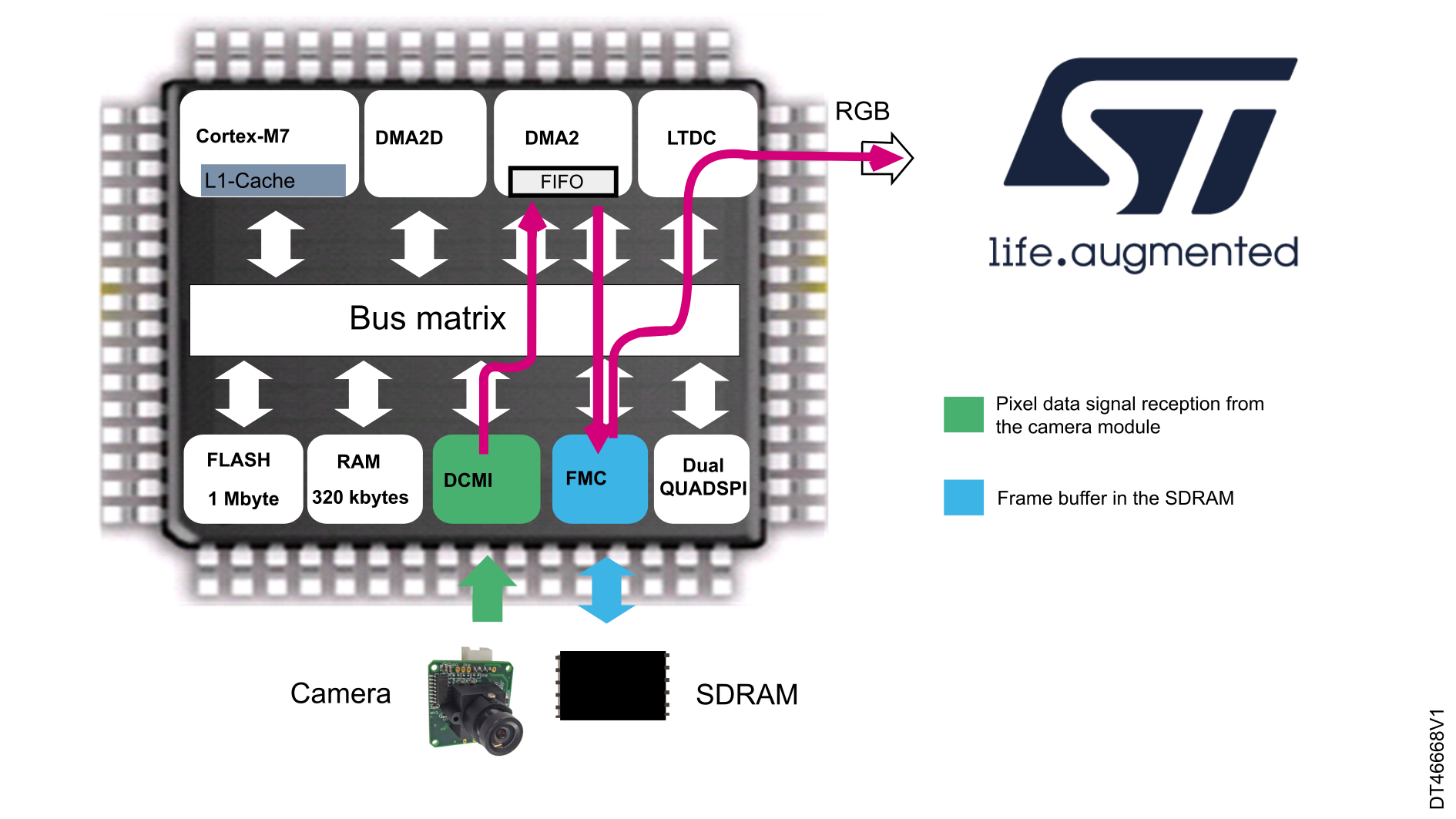
For these examples, the user needs to configure the DCMI, the DMA2, the LTDC (for the RGB data capture and display example), and the SDRAM.

The five examples described in the next sections have some common configurations based on STM32CubeMX:
  • GPIO configuration
  • DMA configuration
  • Clock configuration
The following specific configurations are needed for Y-only and JPEG capture examples:
  • DCMI configuration
  • Camera module configuration

The next sections provide the hardware description, the common configuration using STM32CubeMX, and the common modifications that have to be added to the STM32CubeMX generated project.
Hardware description

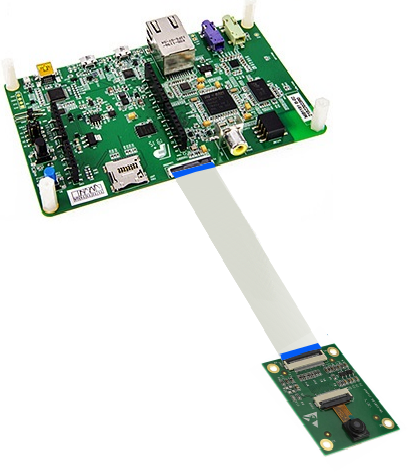
All examples except the JPEG capture, were implemented on 32F746GDISCOVERY using the camera board STM32F4DIS-CAM, as shown in Figure 50 32F746GDISCOVERY and STM32F4DIS-CAM interconnection.
Figure 50. 32F746GDISCOVERY and STM32F4DIS-CAM interconnection

The STM32F4DIS-CAM board includes an Omnivision CMOS sensor (ov9655), 1.3 megapixels. The resolution can reach 1280x1024. This camera module is connected to the DCMI via a 30-pin FFC.

The 32F746GDISCOVERY board features a 4.3-inch color LCD-TFT with capacitive touch screen that is used in the first example to display the captured images.

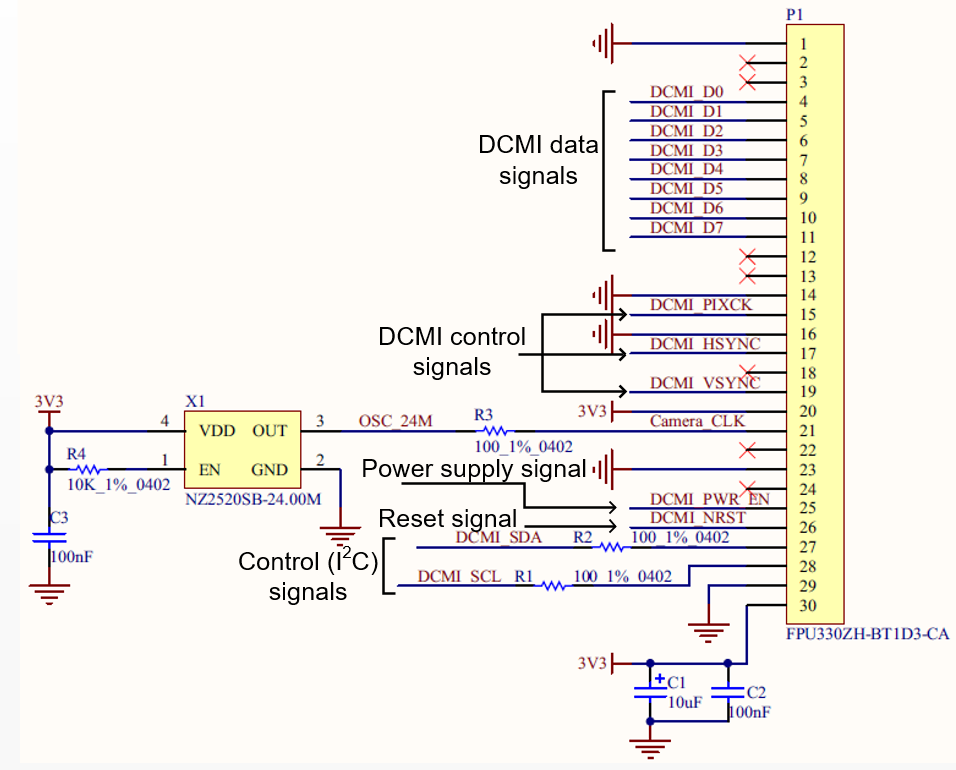
As shown in Figure 51 Camera connector on 32F746GDISCOVERY, the camera module is connected to the STM32F7 through:
  • Control signals DCMI_PIXCLK, DCMI_VSYNC, DCMI_HSYNC
  • Image data signals DCMI_D[0..7]
Additional signals are provided to the camera module through the 30-pin FFC:
  • Power supply signals (DCMI_PWR_EN)
  • Clock for the camera module (Camera_CLK)
  • Configuration signals (I2C)
  • Reset signal (DCMI_NRST)

For more details on these signals, refer to Camera module interconnect (parallel interface).

The camera clock is provided to the camera module through the Camera_CLK pin, by the NZ2520SB crystal clock oscillator (X1) embedded on the 32F746GDISCOVERY board. The frequency of the camera clock is equal to 24 MHz.

The DCMI reset pin (DCMI_NRST) used to reset the camera module is connected to the global MCU reset pin (NRST).

Figure 51. Camera connector on 32F746GDISCOVERY

For more details on the 32F746GDISCOVERY board, refer to the user manual Discovery kit for STM32F7 series with STM32F746NG MCU (UM1907) available on the STMicroelectronics website.

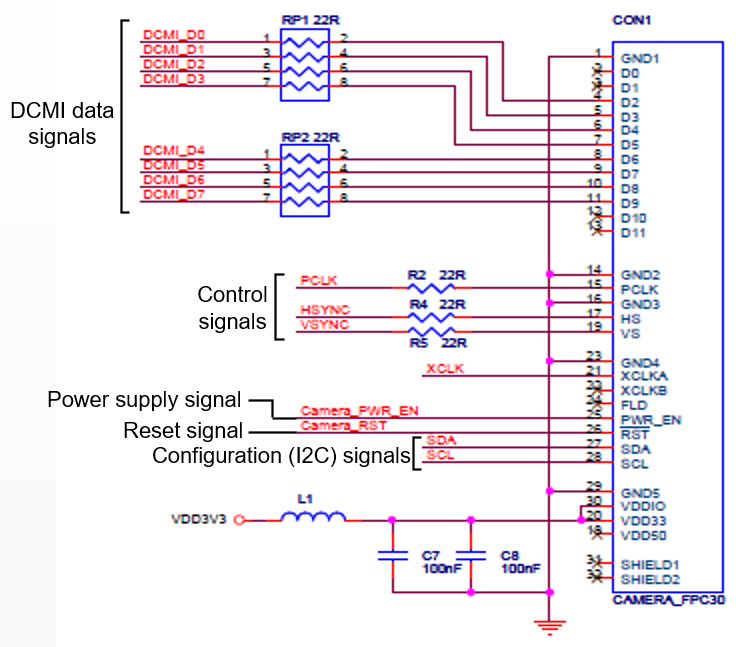
Figure 52 Camera connector on STM32F4DIS-CAM details the camera module connector implemented on STM32F4DIS-CAM.
Figure 52. Camera connector on STM32F4DIS-CAM

Configuration of common examples

When starting with STM32CubeMX, the first step is to configure the project location and the corresponding toolchain or IDE (menu Project/Settings).

STM32CubeMX - Configuration of DCMI GPIOs
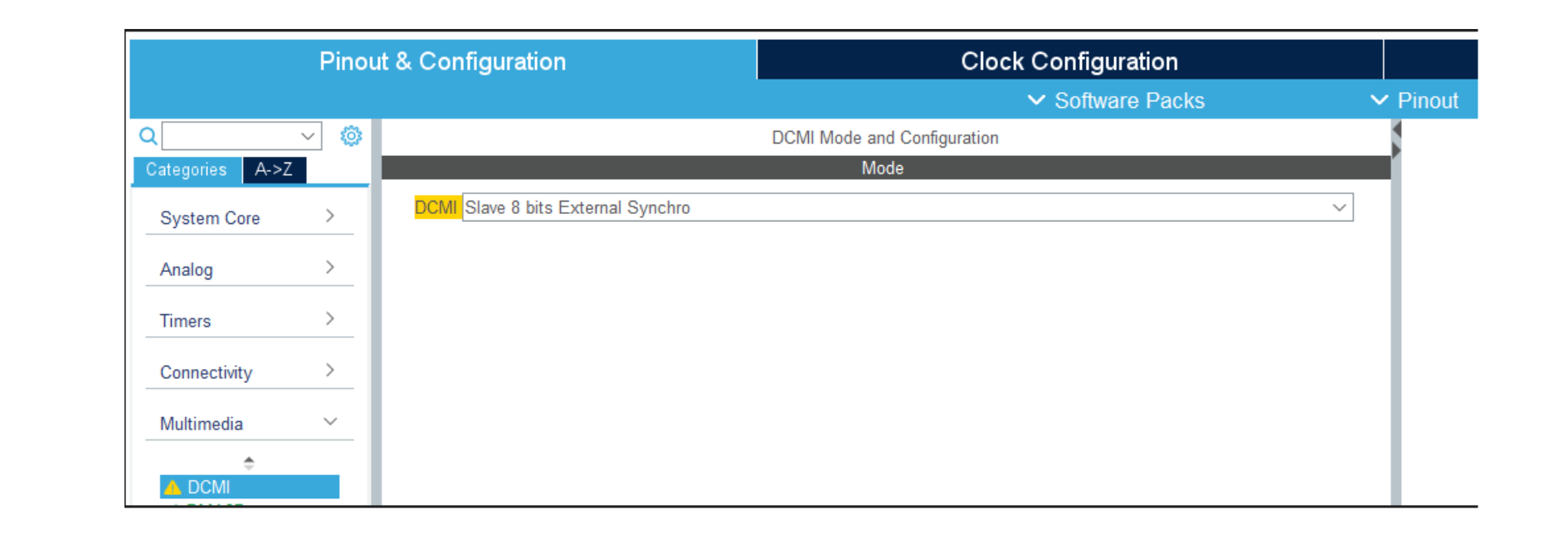
  1. Select the DCMI and choose “Slave 8 bits External Synchro” in the Pinout & configuration multimedia tab to configure the DCMI in slave 8-bit external (hardware) synchronization.
    Figure 53. STM32CubeMX - DCMI synchronization mode selection

    If, after selecting one hardware configuration (Slave 8 bits External Synchro for example), the used GPIOs do not match with the hardware, the user can change the desired GPIOs, and configure the alternate function directly on the pin.

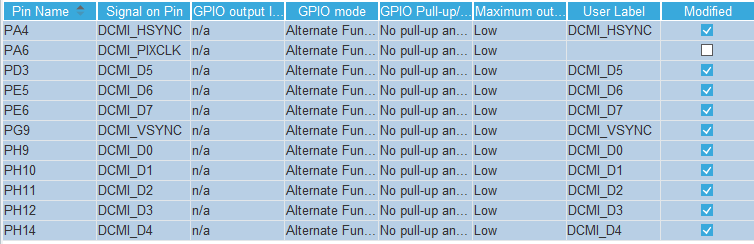
    Another method consists of configuring manually the GPIO pins by selecting the right alternate function for each of them. For more details on the GPIOs that must be configured, refer to Figure 55 STM32CubeMX - DCMI pin selection.

    After this step, 11 pins must be highlighted in green (D[0..7], DCMI_VSYNC, DCMI_HSYNC, and DCMI_PIXCLK).

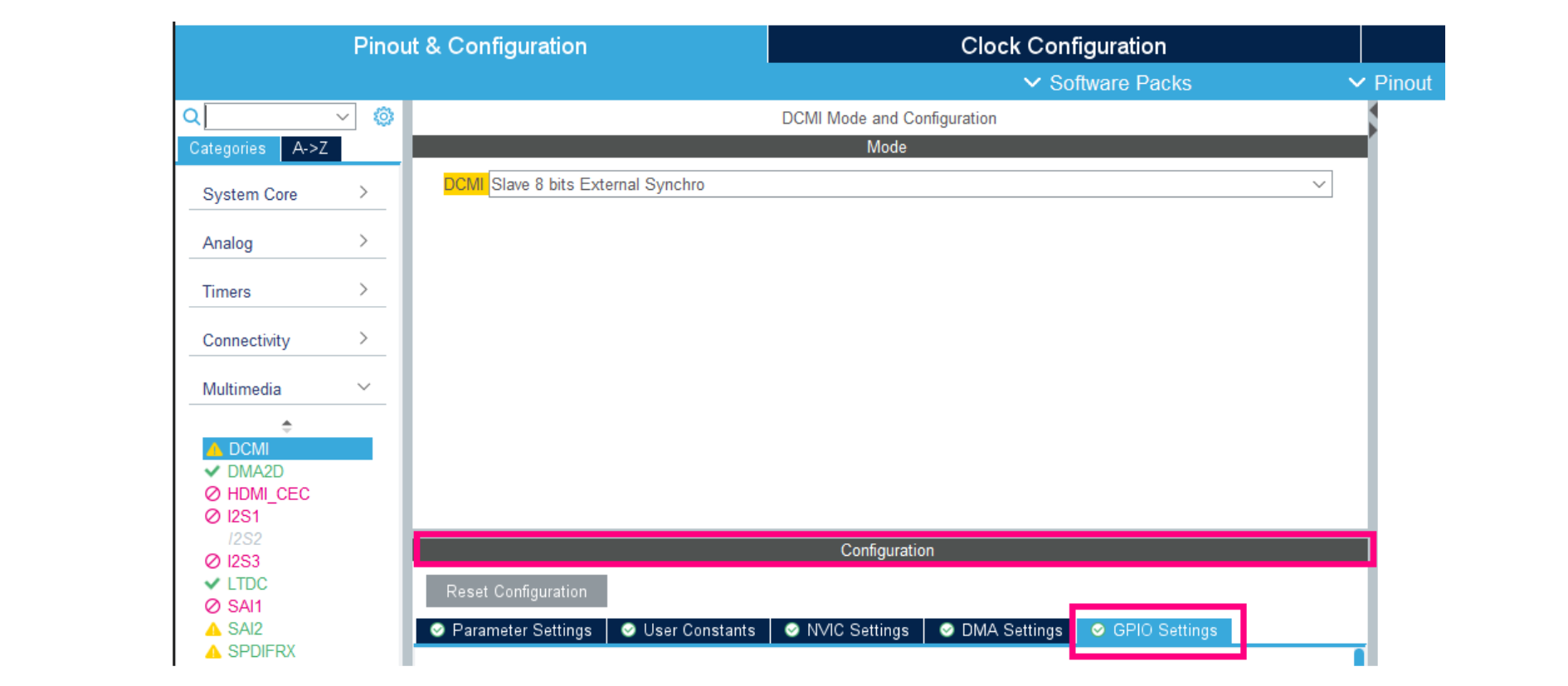
  2. Select the Configuration tab to configure the GPIOs mode.
  3. When the DCMI configuration window appears, select the GPIO Settings tab.
    Figure 54. STM32CubeMX - GPIO settings selection
  4. Select all the DCMI pins.
    Figure 55. STM32CubeMX - DCMI pin selection
  5. Set the GPIO pull-up/pull-down.
    Figure 56. STM32CubeMX - GPIO no pull-up and no pull-down selection
STM32CubeMX - Configuration of DCMI control signals and capture mode
  1. Click on Parameter Settings tab in DCMI Configuration window.
    Figure 57. STM32CubeMX - Parameter Settings tab
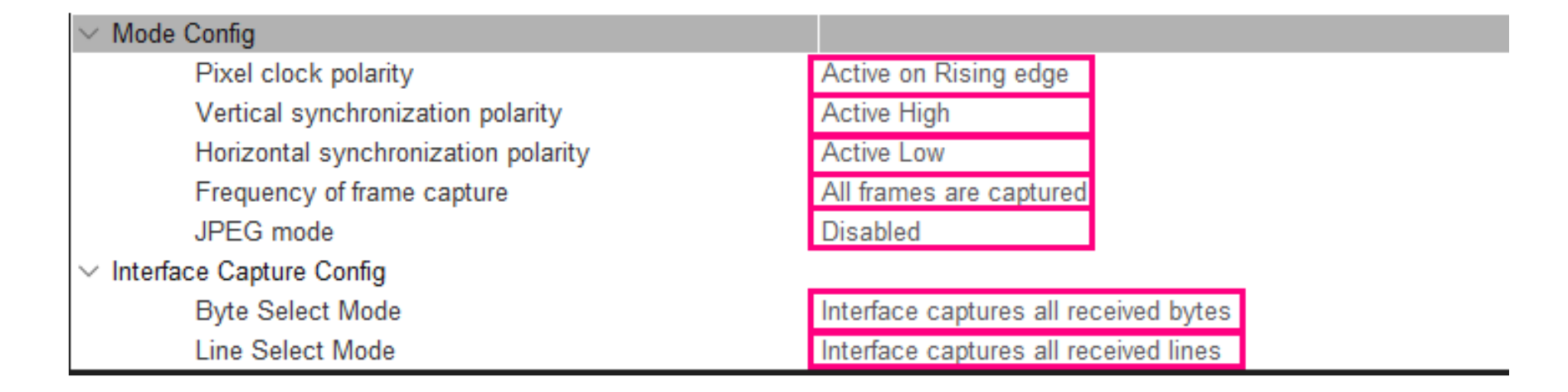
  2. Set the different parameters (vertical synchronization, horizontal synchronization, and pixel clock polarities) that must be programmed according to the camera module configuration.
    Figure 58. STM32CubeMX - DCMI control signals and capture mode
Note:

The vertical synchronization polarity must be active high, and the horizontal synchronization polarity must be active low. They must not be inverted for this configuration of the camera module.

STM32CubeMX - Enable DCMI interrupts
  1. Select NVIC Settings tab in DCMI Configuration window, and check the DCMI global interrupt.
    Figure 59. STM32CubeMX - Configuration of DCMI interrupts
STM32CubeMX - DMA configuration

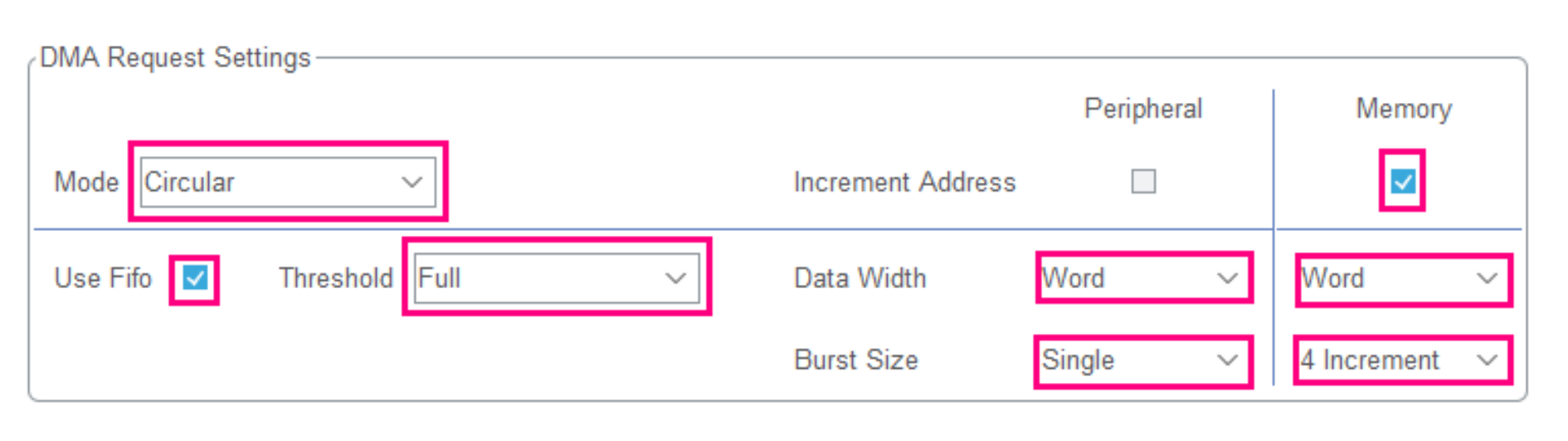
This configuration aims to receive RGB565 data (2 byte/pixel). The image resolution is QVGA (320x240). The image size is then 320 × 240 × 2 = 153600 bytes.

Since the data width sent from the DCMI is 4 bytes (32-bit words sent from the DCMI data register), the number of data items in the DMA_SxNDTR register is the number of words to transfer. The number of words is then 38400 (153600 / 4) which is less than 65535.

In snapshot mode, the user can configure the DMA in normal mode. In continuous mode, the user can configure the DMA in circular mode.

  1. Select DMA Settings tab in DCMI Configuration window.
    Figure 60. STM32CubeMX - DMA Settings tab
  2. Click on the Add button.
    Figure 61. STM32CubeMX - Add button
  3. Click on Select under DMA Request, and choose DCMI. The DMA2 Stream 1 channel 1 is configured to transfer the DCMI request each time its time register is fulfilled.
    Figure 62. STM32CubeMX - DMA stream configuration
  4. Modify the DMA Request Settings.
    Figure 63. STM32CubeMX - DMA configuration
STM32CubeMX - Camera module power-up pins

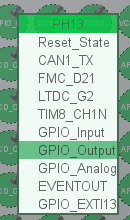
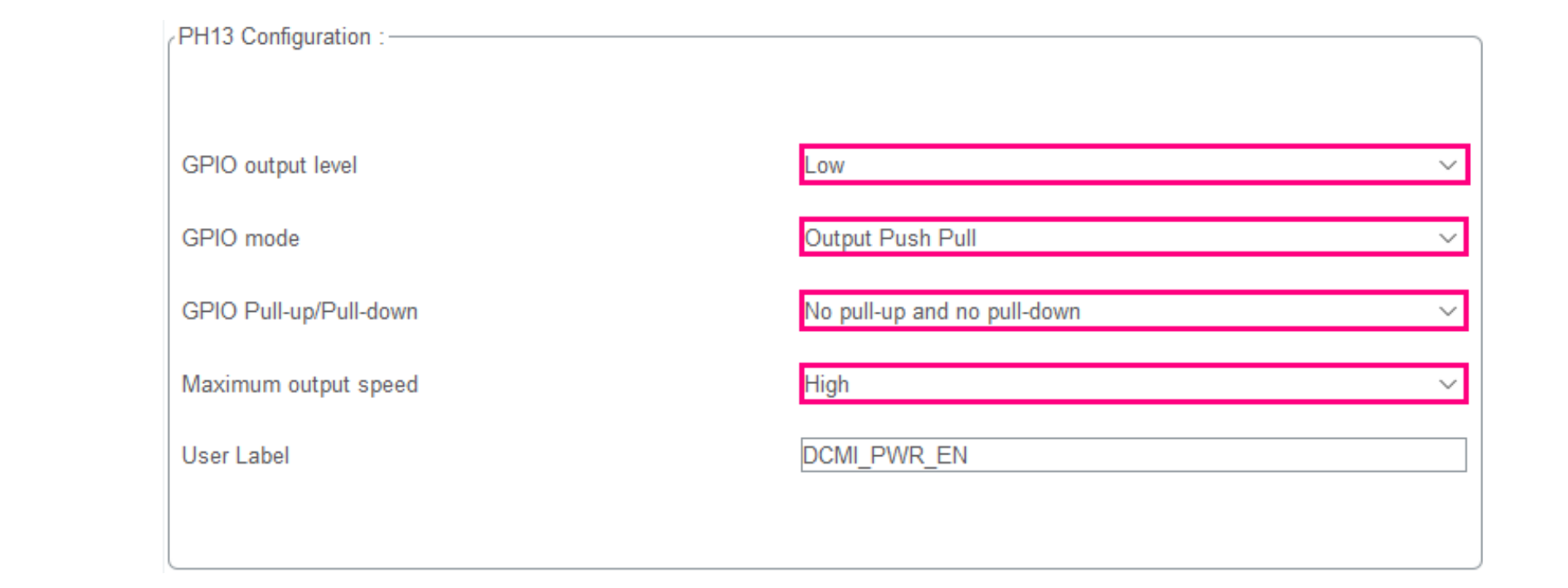
To power up the camera module, the PH13 pin must be configured for 32F746GDISCOVERY.

  1. Click on the PH13 pin and select GPIO_Output in the Pinout tab.
    Figure 64. STM32CubeMX - PH13 pin configuration
  2. In Pinout & Configuration tab system core, click on the GPIO button.
    Figure 65. STM32CubeMX - GPIO button
  3. Set the parameters.
    Figure 66. STM32CubeMX - DCMI power pin configuration
STM32CubeMX - System clock configuration
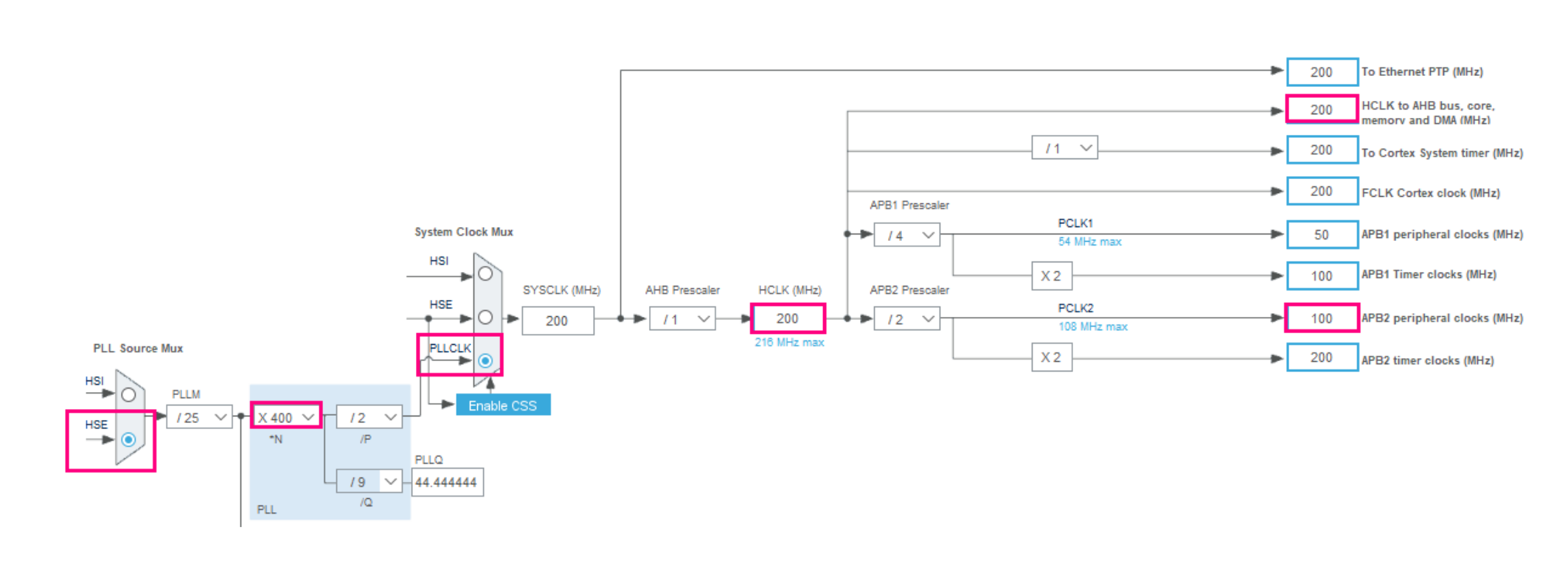
In this example, the system clock is configured as follows:
  • Use of an external HSE clock, where the main PLL is used as a system source clock
  • HCLK @ 200 MHz, so the Cortex®-M7 and LTDC are both running at 200 MHz
Note:

HCLK is set to 200 MHz but not 216 MHz, to set the SDRAM_FMC at its maximum speed of 100 MHz with an HCLK/2 prescaler.

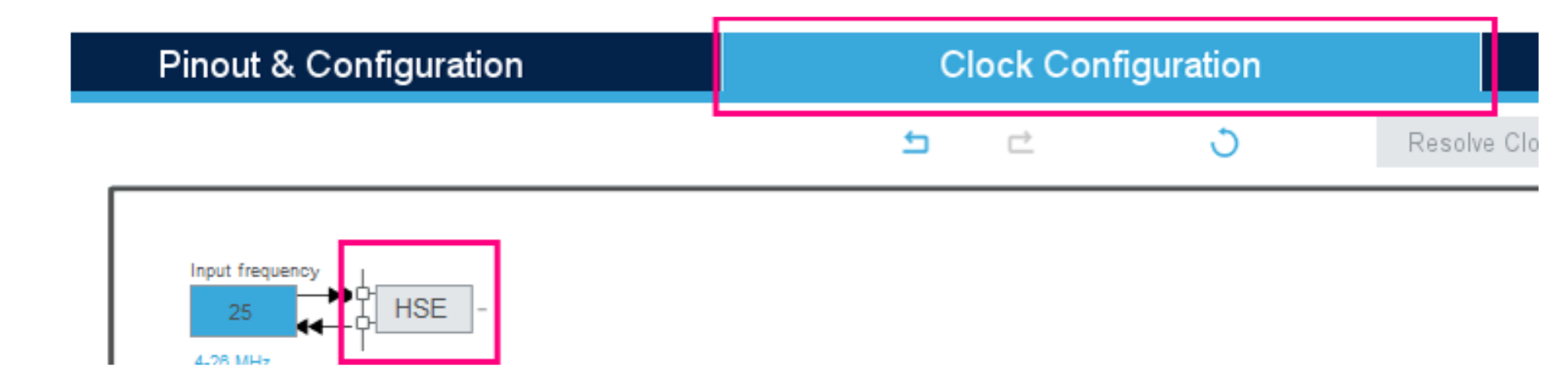
  1. Select the Clock Configuration tab.
    Figure 67. STM32CubeMX - HSE configuration
  2. Set the PLLs and the prescalers in the Clock Configuration tab, to get the system clock HCLK @ 200 MHz.
    Figure 68. STM32CubeMX - Clock configuration
Adding files to the project

Generate the code and open the generated project using the preferred toolchain. Then follow these steps:

  1. Right click on Drivers/STM32F7xx_HAL_Driver.
  2. Choose “Add Existing Files to group 'Drivers/STM32F7xx_HAL_Driver..."
  3. Select the following files in Drivers/STM32F7xx_HAL_Driver/Src:
    • stm32f7xx_hal_dma2d.c
    • stm32f7xx_hal_ltdc.c
    • stm32f7xx_hal_ltdc_ex.c
    • stm32f7xx_hal_sdram.c
    • stm32f7xx_hal_uart.c
    • stm32f7xx_ll_fmc.c
  4. Create a new group called, for example, Imported_Drivers.
  5. Copy the following files from the STM32746G_Discovery folder in C: directory to the Src folder of the project:
    • stm32746g_discovery.c
    • stm32746g_discovery_sdram.c
  6. Copy the following files from the STM32746G_Discovery folder in C: directory to the Inc folder of the project:
    • stm32746g_discovery.h
    • stm32746g_discovery_sdram.h
  7. Copy ov9655.c from the Components folder to the Src folder.
  8. Copy ov9655.h from the Components folder to the Inc folder.
  9. Copy camera.h from the Component/Common folder to the Inc folder.
  10. Add the following files in the new group (called Imported_Drivers in this example):
    • stm32746g_discovery.h
    • stm32746g_discovery_sdram.h
    • ov9655.c
  11. Allow modifications on ov9655.h and camera.h (read-only by default):
    1. Click right on the file.
    2. Uncheck read-only.
    3. Click on Apply and OK.
  12. Modify ov9655.h by replacing #include "../Common/camera.h" by #include "camera.h".
  13. Copy the following files to the Inc folder:
    • rk043fn48h.h from Components folder
    • fonts.h from Utilities/Fonts folder
  14. Copy fonts24.c from Utilities/Fonts folder to the Src folder.
  15. Check that no problem happened by rebuilding all files. There must be no error and no warning.
Modifications in main.c file
  1. Update main.c by inserting some instructions to include the needed files in the adequate space (indicated in bold below). This task provides the project modification and regeneration without losing the user code.
    /* USER CODE BEGIN Includes */
    #include "stm32746g_discovery.h"
    #include "stm32746g_discovery_sdram.h"
    #include "ov9655.h"
    #include "rk043fn48h.h"
    #include "fonts.h"
    /* USER CODE END Includes */
    Some variable declarations must then be inserted in the adequate space indicated in bold below.
    /* USER CODE BEGIN PV */
    /* Private variables ----------------------------------------------------*/
    typedef enum
    {
    CAMERA_OK = 0x00,
    CAMERA_ERROR = 0x01,
    CAMERA_TIMEOUT = 0x02,
    CAMERA_NOT_DETECTED = 0x03,
    CAMERA_NOT_SUPPORTED = 0x04
    } Camera_StatusTypeDef;
    typedef struct
    {
    uint32_t TextColor;
    uint32_t BackColor;
    sFONT *pFont;
    }LCD_DrawPropTypeDef;
    typedef struct
    {
    int16_t X;
    int16_t Y;
    }Point, * pPoint;
    static LCD_DrawPropTypeDef DrawProp[2];
    LTDC_HandleTypeDef hltdc;
    LTDC_LayerCfgTypeDef layer_cfg;
    static RCC_PeriphCLKInitTypeDef periph_clk_init_struct;
    CAMERA_DrvTypeDef *camera_driv;
    /* Camera module I2C HW address */
    static uint32_t CameraHwAddress;
    /* Image size */
    uint32_t Im_size = 0;
    /* USER CODE END PV */
    The function prototypes must also be inserted in the adequate space indicated in bold below.
    /* USER CODE BEGIN PFP */
    /* Private function prototypes -----------------------------------------*/
    uint8_t CAMERA_Init(uint32_t );
    static void LTDC_Init(uint32_t , uint16_t , uint16_t , uint16_t, uint16_t
    );
    void LCD_GPIO_Init(LTDC_HandleTypeDef *, void *);
    /* USER CODE END PFP */
  2. Update main() function by inserting some functions in the adequate space (indicated in bold below).
    • LTDC_Init allows the configuration and initialization of the LCD.
    • BSP_SDRAM_Init allows the configuration and initialization of the SDRAM.
    • CAMERA_Init allows the configuration of the camera module, DCMI registers, and DCMI parameters.
    • One of the two functions HAL_DCMI_Start_DMA allowing the DCMI configuration in snapshot or in continuous mode, must be uncommented.
    /* USER CODE BEGIN 2 */
    LTDC_Init(FRAME_BUFFER, 0, 0, 320, 240);
    BSP_SDRAM_Init();
    CAMERA_Init(CAMERA_R320x240);
    HAL_Delay(1000); //Delay for the camera to output correct data
    Im_size = 0x9600; //size=320*240*2/4
    /* uncomment the following line in case of snapshot mode */
    //HAL_DCMI_Start_DMA(&hdcmi, DCMI_MODE_SNAPSHOT, (uint32_t)FRAME_BUFFER, Im_size);
    /* uncomment the following line in case of continuous mode */
    HAL_DCMI_Start_DMA(&hdcmi, DCMI_MODE_CONTINUOUS , (uint32_t)FRAME_BUFFER, Im_size);
    /* USER CODE END 2 */
  3. Insert the implementation of the new functions (called in the main() function), out of the main function, in the adequate space, indicated in bold below.
    /* USER CODE BEGIN 4 */
    void LCD_GPIO_Init(LTDC_HandleTypeDef *hltdc, void *Params)
    {
    GPIO_InitTypeDef gpio_init_structure;
    /* Enable the LTDC and DMA2D clocks */
    __HAL_RCC_LTDC_CLK_ENABLE();
    __HAL_RCC_DMA2D_CLK_ENABLE();
    /* Enable GPIOs clock */
    __HAL_RCC_GPIOE_CLK_ENABLE();
    __HAL_RCC_GPIOG_CLK_ENABLE();
    __HAL_RCC_GPIOI_CLK_ENABLE();
    __HAL_RCC_GPIOJ_CLK_ENABLE();
    __HAL_RCC_GPIOK_CLK_ENABLE();
    /*** LTDC Pins configuration ***/
    /* GPIOE configuration */
    gpio_init_structure.Pin = GPIO_PIN_4;
    gpio_init_structure.Mode = GPIO_MODE_AF_PP;
    gpio_init_structure.Pull = GPIO_NOPULL;
    gpio_init_structure.Speed = GPIO_SPEED_FAST;
    gpio_init_structure.Alternate = GPIO_AF14_LTDC;
    HAL_GPIO_Init(GPIOE, &gpio_init_structure);
    /* GPIOG configuration */
    gpio_init_structure.Pin = GPIO_PIN_12;
    gpio_init_structure.Mode = GPIO_MODE_AF_PP;
    gpio_init_structure.Alternate = GPIO_AF9_LTDC;
    HAL_GPIO_Init(GPIOG, &gpio_init_structure);
    /* GPIOI LTDC alternate configuration */
    gpio_init_structure.Pin = GPIO_PIN_9 | GPIO_PIN_10 | GPIO_PIN_13 |
    GPIO_PIN_14 | GPIO_PIN_15;
    gpio_init_structure.Mode = GPIO_MODE_AF_PP;
    gpio_init_structure.Alternate = GPIO_AF14_LTDC;
    HAL_GPIO_Init(GPIOI, &gpio_init_structure);
    /* GPIOJ configuration */
    gpio_init_structure.Pin = GPIO_PIN_0 | GPIO_PIN_1 | GPIO_PIN_2 |
    GPIO_PIN_3 | GPIO_PIN_4 | GPIO_PIN_5 | GPIO_PIN_6 | GPIO_PIN_7 | GPIO_PIN_5
    | GPIO_PIN_6 | GPIO_PIN_7 |GPIO_PIN_8 | GPIO_PIN_9 | GPIO_PIN_10 |
    GPIO_PIN_11 | GPIO_PIN_13 | GPIO_PIN_14 | GPIO_PIN_15;
    gpio_init_structure.Mode = GPIO_MODE_AF_PP;
    gpio_init_structure.Alternate = GPIO_AF14_LTDC;
    HAL_GPIO_Init(GPIOJ, &gpio_init_structure);
    /* GPIOK configuration */
    gpio_init_structure.Pin = GPIO_PIN_0 | GPIO_PIN_1 | GPIO_PIN_2 |
    GPIO_PIN_4 | GPIO_PIN_5 | GPIO_PIN_6 | GPIO_PIN_7;
    gpio_init_structure.Mode = GPIO_MODE_AF_PP;
    gpio_init_structure.Alternate = GPIO_AF14_LTDC;
    HAL_GPIO_Init(GPIOK, &gpio_init_structure);
    /* LCD_DISP GPIO configuration */
    gpio_init_structure.Pin = GPIO_PIN_12; /* LCD_DISP pin has to be
    manually controlled */
    gpio_init_structure.Mode = GPIO_MODE_OUTPUT_PP;
    HAL_GPIO_Init(GPIOI, &gpio_init_structure);
    /* LCD_BL_CTRL GPIO configuration */
    gpio_init_structure.Pin = GPIO_PIN_3; /* LCD_BL_CTRL pin has to be
    manually controlled */
    gpio_init_structure.Mode = GPIO_MODE_OUTPUT_PP;
    HAL_GPIO_Init(GPIOK, &gpio_init_structure);
    }
    static void LTDC_Init(uint32_t FB_Address, uint16_t Xpos, uint16_t Ypos,
    uint16_t Width, uint16_t Height)
    {
    /* Timing Configuration */
    hltdc.Init.HorizontalSync = (RK043FN48H_HSYNC - 1);
    hltdc.Init.VerticalSync = (RK043FN48H_VSYNC - 1);
    hltdc.Init.AccumulatedHBP = (RK043FN48H_HSYNC + RK043FN48H_HBP - 1);
    hltdc.Init.AccumulatedVBP = (RK043FN48H_VSYNC + RK043FN48H_VBP - 1);
    hltdc.Init.AccumulatedActiveH = (RK043FN48H_HEIGHT + RK043FN48H_VSYNC +
    RK043FN48H_VBP - 1);
    hltdc.Init.AccumulatedActiveW = (RK043FN48H_WIDTH + RK043FN48H_HSYNC +
    RK043FN48H_HBP - 1);
    hltdc.Init.TotalHeigh = (RK043FN48H_HEIGHT + RK043FN48H_VSYNC +
    RK043FN48H_VBP + RK043FN48H_VFP - 1);
    hltdc.Init.TotalWidth = (RK043FN48H_WIDTH + RK043FN48H_HSYNC +
    RK043FN48H_HBP + RK043FN48H_HFP - 1);
    /* LCD clock configuration */
    periph_clk_init_struct.PeriphClockSelection = RCC_PERIPHCLK_LTDC;
    periph_clk_init_struct.PLLSAI.PLLSAIN = 192;
    periph_clk_init_struct.PLLSAI.PLLSAIR = RK043FN48H_FREQUENCY_DIVIDER;
    periph_clk_init_struct.PLLSAIDivR = RCC_PLLSAIDIVR_4;
    HAL_RCCEx_PeriphCLKConfig(&periph_clk_init_struct);
    /* Initialize the LCD pixel width and pixel height */
    hltdc.LayerCfg->ImageWidth = RK043FN48H_WIDTH;
    hltdc.LayerCfg->ImageHeight = RK043FN48H_HEIGHT;
    hltdc.Init.Backcolor.Blue = 0;/* Background value */
    hltdc.Init.Backcolor.Green = 0;
    hltdc.Init.Backcolor.Red = 0;
    /* Polarity */
    hltdc.Init.HSPolarity = LTDC_HSPOLARITY_AL;
    hltdc.Init.VSPolarity = LTDC_VSPOLARITY_AL;
    hltdc.Init.DEPolarity = LTDC_DEPOLARITY_AL;
    hltdc.Init.PCPolarity = LTDC_PCPOLARITY_IPC;
    hltdc.Instance = LTDC;
    if(HAL_LTDC_GetState(&hltdc) == HAL_LTDC_STATE_RESET)
    {
    LCD_GPIO_Init(&hltdc, NULL);
    }
    HAL_LTDC_Init(&hltdc);
    /* Assert display enable LCD_DISP pin */
    HAL_GPIO_WritePin(GPIOI, GPIO_PIN_12, GPIO_PIN_SET);
    /* Assert backlight LCD_BL_CTRL pin */
    HAL_GPIO_WritePin(GPIOK, GPIO_PIN_3, GPIO_PIN_SET);
    DrawProp[0].pFont = &Font24 ;
    /* Layer Init */
    layer_cfg.WindowX0 = Xpos;
    layer_cfg.WindowX1 = Width;
    layer_cfg.WindowY0 = Ypos;
    layer_cfg.WindowY1 = Height;
    layer_cfg.PixelFormat = LTDC_PIXEL_FORMAT_RGB565;
    layer_cfg.FBStartAdress = FB_Address;
    layer_cfg.Alpha = 255;
    layer_cfg.Alpha0 = 0;
    layer_cfg.Backcolor.Blue = 0;
    layer_cfg.Backcolor.Green = 0;
    layer_cfg.Backcolor.Red = 0;
    layer_cfg.BlendingFactor1 = LTDC_BLENDING_FACTOR1_PAxCA;
    layer_cfg.BlendingFactor2 = LTDC_BLENDING_FACTOR2_PAxCA;
    layer_cfg.ImageWidth = Width;
    layer_cfg.ImageHeight = Height;
    HAL_LTDC_ConfigLayer(&hltdc, &layer_cfg, 1);
    DrawProp[1].BackColor = ((uint32_t)0xFFFFFFFF);
    DrawProp[1].pFont = &Font24;
    DrawProp[1].TextColor = ((uint32_t)0xFF000000);
    }
    uint8_t CAMERA_Init(uint32_t Resolution) /*Camera initialization*/
    {
    uint8_t status = CAMERA_ERROR;
    /* Read ID of Camera module via I2C */
    if(ov9655_ReadID(CAMERA_I2C_ADDRESS) == OV9655_ID)
    {
    camera_driv = &ov9655_drv;/* Initialize the camera driver structure */
    CameraHwAddress = CAMERA_I2C_ADDRESS;
    if (Resolution == CAMERA_R320x240)
    {
    camera_driv->Init(CameraHwAddress, Resolution);
    HAL_DCMI_DisableCROP(&hdcmi);
    }
    status = CAMERA_OK; /* Return CAMERA_OK status */
    }
    else
    {
    status = CAMERA_NOT_SUPPORTED; /* Return CAMERA_NOT_SUPPORTED status */
    }
    return status;
    }
    /* USER CODE END 4 */
Modifications in main.h file
Update main.h by inserting the frame buffer address declaration in the adequate space, indicated in bold below.
/* USER CODE BEGIN Private defines */
#define FRAME_BUFFER 0xC0000000
/* USER CODE END Private defines */


At this stage, the user can build, debug, and run the project.

RGB data capture and display

To simplify this example, data are captured and displayed in RGB565 format (2 bpp). The image resolution is 320x240 (QVGA). The frame buffer is placed in the SDRAM. Camera and LCD data are located in the same frame buffer. The LCD displays then directly the data captured through the DCMI without any processing. The camera module is configured to output RGB565 data, QVGA (320x240).

The configuration of this example can be done by following the steps described in Configuration of common examples.

YCbCr data capture

This implementation example aims to receive YCbCr data from the camera module, and to transfer them to the SDRAM.

Displaying the YCbCr received data on the LCD (configured to display RGB565 data in the previous configuration) is not correct, but can be used for verification.

To display images correctly, YCbCr data must be converted into RGB565 data (or RGB888 or ARGB8888, depending on the application needs).

All the configuration steps signaled in Configuration of common examples must be followed.

Some instructions must be added to obtain YCbCr data. Only the camera configuration has to be updated by adding:
  • A table of constants allowing the configuration of camera module registers
  • A new function used to configure the camera module by sending the register configuration through the I2C.
  1. Add the table containing the configuration of camera module registers in main.c,
    below /* Private variables ----------------------*/.
    const unsigned char OV9655_YUV_QVGA [ ][2]=
    { { 0x12, 0x80 },{ 0x00, 0x00 },{ 0x01, 0x80 },{ 0x02, 0x80 },{ 0x03, 0x02
    },{ 0x04, 0x03 },{ 0x0e, 0x61 }, { 0x0f, 0x42 },{ 0x11, 0x01 },{ 0x12, 0x62
    },{ 0x13, 0xe7 },{ 0x14, 0x3a },{ 0x16, 0x24 },{ 0x17, 0x18 }, { 0x18, 0x04
    },{ 0x19, 0x01 },{ 0x1a, 0x81 } ,{ 0x1e, 0x04 },{ 0x24, 0x3c },{ 0x25, 0x36
    },{ 0x26, 0x72 }, { 0x27, 0x08 },{ 0x28, 0x08 },{ 0x29, 0x15 },{ 0x2a, 0x00
    },{ 0x2b, 0x00 },{ 0x2c, 0x08 },{ 0x32, 0x24 }, { 0x33, 0x00 },{ 0x34, 0x3f
    },{ 0x35, 0x00 },{ 0x36, 0x3a },{ 0x38, 0x72 },{ 0x39, 0x57 } ,{ 0x3a, 0x0c
    },{ 0x3b, 0x04 },{ 0x3d, 0x99 },{ 0x3e, 0x0e },{ 0x3f, 0xc1 },{ 0x40, 0xc0}
    ,{ 0x41, 0x01 },{ 0x42, 0xc0 },{ 0x43, 0x0a },{ 0x44, 0xf0 },{ 0x45, 0x46
    },{ 0x46, 0x62} ,{ 0x47, 0x2a },{ 0x48, 0x3c },{ 0x4a, 0xfc }, { 0x4b, 0xfc
    },{ 0x4c, 0x7f },{ 0x4d, 0x7f}, { 0x4e, 0x7f },{ 0x52, 0x28 },{ 0x53, 0x88
    },{ 0x54, 0xb0 }, { 0x4f, 0x98 },{ 0x50, 0x98} ,{ 0x51, 0x00 },{ 0x58, 0x1a
    },{ 0x59, 0x85 },{ 0x5a, 0xa9 },{ 0x5b, 0x64 } ,{ 0x5c, 0x84 },{ 0x5d, 0x53
    },{ 0x5e, 0x0e },{ 0x5f, 0xf0 },{ 0x60, 0xf0 },{ 0x61, 0xf0 } ,{ 0x62, 0x00
    }, { 0x63, 0x00 },{ 0x64, 0x02 },{ 0x65, 0x20 },{ 0x66, 0x00 },{ 0x69, 0x0a
    },{ 0x6b, 0x5a },{ 0x6c, 0x04 }, { 0x6d, 0x55 },{ 0x6e, 0x00 },{ 0x6f, 0x9d
    },{ 0x70, 0x21 },{ 0x71, 0x78 },{ 0x72, 0x11 },{ 0x73, 0x01 }, { 0x74, 0x10
    },{ 0x75, 0x10 } ,{ 0x76, 0x01 },{ 0x77, 0x02 },{ 0x7a, 0x12 },{ 0x7b, 0x08
    },{ 0x7c, 0x15 }, { 0x7d, 0x24 },{ 0x7e, 0x45 },{ 0x7f, 0x55 },{ 0x80, 0x6a
    },{ 0x81, 0x78 },{ 0x82, 0x87 },{ 0x83, 0x96 }, { 0x84, 0xa3 },{ 0x85, 0xb4
    },{ 0x86, 0xc3 },{ 0x87, 0xd6 },{ 0x88, 0xe6 } ,{ 0x89, 0xf2 },{ 0x8a, 0x24
    }, { 0x8c, 0x80 },{ 0x90, 0x7d },{ 0x91, 0x7b },{ 0x9d, 0x02 } ,{ 0x9e, 0x02
    },{ 0x9f, 0x7a },{ 0xa0, 0x79 }, { 0xa1, 0x40 },{ 0xa4, 0x50 },{ 0xa5, 0x68
    },{ 0xa6, 0x4a },{ 0xa8, 0xc1 },{ 0xa9, 0xef },{ 0xaa, 0x92 }, { 0xab, 0x04
    } ,{ 0xac, 0x80 },{ 0xad, 0x80 },{ 0xae, 0x80 },{ 0xaf, 0x80 },{ 0xb2, 0xf2
    },{ 0xb3, 0x20 } ,{ 0xb4, 0x20 },{ 0xb5, 0x00 },{ 0xb6, 0xaf },{ 0xbb, 0xae
    },{ 0xbc, 0x7f },{ 0xbd, 0x7f } ,{ 0xbe, 0x7f },{ 0xbf, 0x7f },{ 0xc0, 0xaa
    },{ 0xc1, 0xc0 },{ 0xc2, 0x01 },{ 0xc3, 0x4e } ,{ 0xc6, 0x05 },{ 0xc7, 0x81
    },{ 0xc9, 0xe0 },{ 0xca, 0xe8 },{ 0xcb, 0xf0 },{ 0xcc, 0xd8 } ,{ 0xcd, 0x93
    }, { 0xcd, 0x93 },{ 0xFF, 0xFF } };
  2. The new function prototype has to be inserted below /* Private function prototypes ------*/.
    void OV9655_YUV_Init (uint16_t );
  3. The second step of modifications in main.c described in Modifications in main.c file has to be updated. Modify the main() function by inserting the following functions in the adequate space, indicated in bold below. One of the two functions allowing the DCMI configuration in snapshot or in continuous mode must be uncommented.
    /* USER CODE BEGIN 2 */
    BSP_SDRAM_Init();
    CAMERA_Init(CameraHwAddress);
    OV9655_YUV_Init(CameraHwAddress);
    HAL_Delay(1000); //Delay for the camera to output correct data
    Im_size = 0x9600; //size=320*240*2/4
    /* uncomment the following line in case of snapshot mode */
    //HAL_DCMI_Start_DMA(&hdcmi, DCMI_MODE_SNAPSHOT, (uint32_t)FRAME_BUFFER, Im_size);
    /* uncomment the following line in case of continuous mode */
    HAL_DCMI_Start_DMA(&hdcmi, DCMI_MODE_CONTINUOUS , (uint32_t)FRAME_BUFFER, Im_size);
    /* USER CODE END 2 */
  4. The third step of modifications in main.c described in Modifications in main.c file has to be updated by adding the new function implementation.
    void OV9655_YUV_Init(uint16_t DeviceAddr)
    { uint32_t index;
    for(index=0; index<(sizeof(OV9655_YUV_QVGA)/2); index++)
    { CAMERA_IO_Write(DeviceAddr, OV9655_YUV_QVGA[index][0],
    OV9655_YUV_QVGA[index][1]);
    CAMERA_Delay(1);
    } }

Y only data capture

In this example, the camera module is configured to output YCbCr data format. By using the byte select feature on the DCMI side, the chrominance components (Cb and Cr) are ignored: only the Y component is transferred to the frame buffer in the SDRAM.

All the configuration steps signaled in Configuration of common examples must be followed.

Some instructions must be added to obtain the Y only data. Only the camera and the DCMI configuration must be updated. To simplify this task, main.c must be modified as described in YCbCr data capture, but the second step of STM32CubeMX - DCMI control signals and capture mode configuration, or the static void MX_DCMI_Init(void) function (this function is implemented in main.c) must be modified..
hdcmi.Instance = DCMI;
hdcmi.Init.SynchroMode = DCMI_SYNCHRO_HARDWARE;
hdcmi.Init.PCKPolarity = DCMI_PCKPOLARITY_RISING;
hdcmi.Init.VSPolarity = DCMI_VSPOLARITY_HIGH;
hdcmi.Init.HSPolarity = DCMI_HSPOLARITY_LOW;
hdcmi.Init.CaptureRate = DCMI_CR_ALL_FRAME;
hdcmi.Init.ExtendedDataMode = DCMI_EXTEND_DATA_8B;
hdcmi.Init.ByteSelectMode = DCMI_BSM_OTHER;
hdcmi.Init.ByteSelectStart = DCMI_OEBS_EVEN;
hdcmi.Init.LineSelectMode = DCMI_LSM_ALL;
hdcmi.Init.LineSelectStart = DCMI_OELS_ODD;

Resolution capture (YCbCr data format)

This implementation example aims to receive YCbCr data from the camera module, and to transfer them to the SDRAM. The captured image resolution is 1280x1024.

To display images correctly, YCbCr data must be converted into RGB565 data (or RGB888 or ARGB8888, depending on the application needs).

All the configuration steps details in Configuration of common examples must be followed.

Some instructions must be added to obtain the YCbCr data. Only the DMA and the camera module configuration have to be updated.

DMA configuration

The DMA is configured as described in DMA configuration for higher resolutions. The HAL_DMA_START function ensures this configuration because the image size exceeds the maximum allowed size for double-buffer mode.

Calling HAL_DMA_START ensures the division of the received frames to equal parts, and the placement of each part in one frame buffer. As explained, for the SXGA resolution, each frame is divided in 16 frame buffers. Each buffer size is equal to 40960 words.

For the buffers addresses, HAL_DMA_START ensures the placement of the 16 frame buffers in the memory. In this case, the address of the first frame buffer is 0xC0000000. The second address is then 0xC0163840 (0xC0000000 + (40960 * 4)). The 16th frame buffer address is (0xC0000000 + 16 * (40960 * 4)).

At the end of each transfer, the DMA has filled one frame, an interrupt is generated, the address of the next buffer is calculated, and one pointer is modified as illustrated in Figure 47 DMA operation in high resolution case.

Camera module configuration

The new camera module configuration is done by adding:
  • A table of constants allowing the configuration of camera module registers
  • A new function used to configure the camera module by sending the register configuration through the I2C

To ensure that the camera module sends images having a YCbCr format, the CMOS sensor registers must be configured with the following steps:

  1. Add the table containing the configuration of camera module registers in main.c
    below /* Private variables -------------------------*/.
    const unsigned char ov9655_yuv_sxga[][2]= {
    { 0x12, 0x80 },{ 0x00, 0x00 },{ 0x01, 0x80 },{ 0x02, 0x80 },{ 0x03, 0x1b },{
    0x04, 0x03 }, { 0x0e, 0x61 },{ 0x0f, 0x42 },{ 0x11, 0x00 },{ 0x12, 0x02 },{
    0x13, 0xe7 },{ 0x14, 0x3a },{ 0x16, 0x24 }, { 0x17, 0x1d },{ 0x18, 0xbd },{
    0x19, 0x01 },{ 0x1a, 0x81 }, { 0x1e, 0x04 }, { 0x24, 0x3c }, { 0x25, 0x36
    },{ 0x26, 0x72 }, { 0x27, 0x08 }, { 0x28, 0x08 },{ 0x29, 0x15 },{ 0x2a, 0x00
    },{ 0x2b, 0x00 },{ 0x2c, 0x08 },{ 0x32, 0xff },{ 0x33, 0x00 },{ 0x34, 0x3d
    },{ 0x35, 0x00 },{ 0x36, 0xf8 },{ 0x38, 0x72 },{ 0x39, 0x57 }, { 0x3a, 0x0c
    },{ 0x3b, 0x04 },{ 0x3d, 0x99 }, { 0x3e, 0x0c },{ 0x3f, 0xc1 },{ 0x40, 0xd0
    },{ 0x41, 0x00 },{ 0x42, 0xc0 },{ 0x43, 0x0a },{ 0x44, 0xf0 },{ 0x45, 0x46
    },{ 0x46, 0x62 }, { 0x47, 0x2a }, { 0x48, 0x3c },{ 0x4a, 0xfc },{ 0x4b, 0xfc
    },{ 0x4c, 0x7f },{ 0x4d, 0x7f },{ 0x4e, 0x7f },{ 0x52, 0x28 },{ 0x53, 0x88
    },{ 0x54, 0xb0 },{ 0x4f, 0x98 },{ 0x50, 0x98 },{ 0x51, 0x00 },{ 0x58, 0x1a
    },{ 0x58, 0x1a },{ 0x59, 0x85 },{ 0x5a, 0xa9 },{ 0x5b, 0x64 },{ 0x5c, 0x84
    },{ 0x5d, 0x53 },{ 0x5e, 0x0e }, { 0x5f, 0xf0 }, { 0x60, 0xf0 }, { 0x61,
    0xf0 },{ 0x62, 0x00 }, { 0x63, 0x00 }, { 0x64, 0x02 },{ 0x65, 0x16 },{ 0x66,
    0x01 },{ 0x69, 0x02 },{ 0x6b, 0x5a }, { 0x6c, 0x04 }, { 0x6d, 0x55 }, {
    0x6e, 0x00 },{ 0x6f, 0x9d },{ 0x70, 0x21 }, { 0x71, 0x78 },{ 0x72, 0x00 },{
    0x73, 0x01 },{ 0x74, 0x3a },{ 0x75, 0x35 },{ 0x76, 0x01 },{ 0x77, 0x02 },{
    0x7a, 0x12 },{ 0x7b, 0x08 }, { 0x7c, 0x15 }, { 0x7d, 0x24 },{ 0x7e, 0x45 },{
    0x7f, 0x55 },{ 0x80, 0x6a },{ 0x81, 0x78 },{ 0x82, 0x87 },{ 0x83, 0x96 },{
    0x84, 0xa3 },{ 0x85, 0xb4 }, { 0x86, 0xc3 },{ 0x87, 0xd6 },{ 0x88, 0xe6 },
    { 0x89, 0xf2 },{ 0x8a, 0x03 }, { 0x8c, 0x0d }, { 0x90, 0x7d }, { 0x91, 0x7b
    }, { 0x9d, 0x03 },{ 0x9e, 0x04 }, { 0x9f, 0x7a }, { 0xa0, 0x79 }, { 0xa1,
    0x40 }, { 0xa4, 0x50 },{ 0xa5, 0x68 }, { 0xa6, 0x4a }, { 0xa8, 0xc1 },{
    0xa9, 0xef }, { 0xaa, 0x92 },{ 0xab, 0x04 },{ 0xac, 0x80 },{ 0xad, 0x80 },{
    0xae, 0x80 },{ 0xaf, 0x80 },{ 0xb2, 0xf2 },{ 0xb3, 0x20 },{ 0xb4, 0x20 },{
    0xb5, 0x00 },{ 0xb6, 0xaf },{ 0xbb, 0xae },{ 0xbc, 0x7f },{ 0xbd, 0x7f },{
    0xbe, 0x7f }, { 0xbf, 0x7f },{ 0xc0, 0xe2 },{ 0xc1, 0xc0 },{ 0xc2, 0x01 },
    { 0xc3, 0x4e }, { 0xc6, 0x05 },{ 0xc7, 0x80 }, { 0xc9, 0xe0 },{ 0xca, 0xe8
    }, { 0xcb, 0xf0 },{ 0xcc, 0xd8 },{0xcd, 0x93} ,{ 0xFF, 0xFF } };
  2. The new function prototype has to be inserted
    below /* Private function prototypes ------------------------*/ .
    void OV9655_YUV_Init (uint16_t );
  3. The second step of modifications in main.c in this example is to update the main() function by inserting the following functions in the adequate space (indicated in bold below). One of the two functions allowing the DCMI configuration in snapshot or in continuous mode must be uncommented.
    /* USER CODE BEGIN 2 */
    BSP_SDRAM_Init();
    CAMERA_Init(CameraHwAddress);
    OV9655_YUV_Init(CameraHwAddress);
    HAL_Delay(1000); //Delay for the camera to output correct data
    Im_size = 0xA0000; //size=1280*1024*2/4
    /* uncomment the following line in case of snapshot mode */
    //HAL_DCMI_Start_DMA(&hdcmi, DCMI_MODE_SNAPSHOT, (uint32_t)FRAME_BUFFER,
    Im_size);
    /* uncomment the following line in case of continuous mode */
    HAL_DCMI_Start_DMA(&hdcmi, DCMI_MODE_CONTINUOUS , (uint32_t)FRAME_BUFFER,
    Im_size);
    /* USER CODE END 2 */
  4. The third step of modifications in main.c described in Modifications in main.c file has to be updated by adding the new function implementation below /* USER CODE BEGIN 4 */ .
    void OV9655_YUV_Init(uint16_t DeviceAddr)
    {
    uint32_t index;
    for(index=0; index<(sizeof(ov9655_yuv_sxga)/2); index++)
    {
    CAMERA_IO_Write(DeviceAddr, ov9655_yuv_sxga[index][0],
    ov9655_yuv_sxga[index][1]);
    CAMERA_Delay(1);
    }
    }
Note:

In case of frame with RGB data format, the user can reduce the resolution to display the received images on the LCD_TFT by using the resizing feature of the DCMI.

JPEG data capture

The OV9655 CMOS sensor embedded in the STM32F4DIS-Cam board does not support the compressed output data. This example is then implemented using OV2640 CMOS sensor, supporting the 8-bit format compressed data.

This example is based on the STM324x9I-EVAL (REV B) board embedding the OV2640 CMOS sensor (MB1066).

The compressed data (JPEG) must be uncompressed to have YCbCr data, and converted to RGB to be displayed, but this implementation example aims only to receive JPEG data through the DCMI, and to store them in the SDRAM.

This example is developed based on the DCMI example (SnapshotMode) provided within the STM32CubeF4 firmware, located in Projects\STM324x9I_EVAL\Examples\DCMI\DCMI_SnapshotMode. The provided example, aims to capture one RGB frame (QVGA resolution), and to display it on the LCD-TFT, having the following configuration:
  • The DCMI and I2C GPIOs are configured as described in Configuration of common examples.
  • The system clock runs at 180 MHz.
  • SDRAM clock runs at 90 MHz.
  • The DCMI is configured to capture 8-bit data width in hardware synchronization (uncompressed data).
  • The camera module is configured to output RGB data images with QVGA resolution.

Based on this example, to be able to capture JPEG data, the user needs to modify the DCMI and the camera module configuration.

DCMI configuration

The DCMI needs to be configured to receive compressed data (JPEG) by setting the JPEG bit in DCMI_CR. To set this bit, the user must simply add the instruction written in bold below in the stm324x9i_eval_camera.c file in uint8_t BSP_CAMERA_Init(uint32_t Resolution) (this function is called in main() to configure the DCMI and the camera module). The DCMI previous configuration is kept.
phdcmi->Init.CaptureRate = DCMI_CR_ALL_FRAME;
phdcmi->Init.HSPolarity = DCMI_HSPOLARITY_LOW;
phdcmi->Init.SynchroMode = DCMI_SYNCHRO_HARDWARE;
phdcmi->Init.VSPolarity = DCMI_VSPOLARITY_LOW;
phdcmi->Init.ExtendedDataMode = DCMI_EXTEND_DATA_8B;
phdcmi->Init.PCKPolarity = DCMI_PCKPOLARITY_RISING;
phdcmi->Init.JPEGMode = DCMI_JPEG_ENABLE;

Camera module configuration

The configuration of CMOS sensor (ov2640) registers must be inserted in the ov2640.c file.
const unsigned char OV2640_JPEG[][2]=
{ {0xff, 0x00},{0x2c, 0xff},{0x2e, 0xdf},{0xff, 0x01},{0x12,
0x80},{0x3c, 0x32},{0x11, 0x00},{0x09,0x02},{0x04, 0x28},{0x13,
0xe5},{0x14, 0x48},{0x2c, 0x0c},{0x33, 0x78},{0x3a, 0x33},{0x3b,
0xfb},{0x3e, 0x00},{0x43, 0x11},{0x16, 0x10},{0x39, 0x02},{0x35,
0x88},{0x22, 0x0a},{0x37, 0x40},{0x23, 0x00},{0x34,
0xa0},{0x36,0x1a},{0x06, 0x02},{0x07, 0xc0}, {0x0d, 0xb7},{0x0e,
0x01},{0x4c, 0x00},{0x4a, 0x81},{0x21, 0x99},{0x24, 0x40},{0x25,
0x38},{0x26, 0x82}, {0x5c, 0x00},{0x63, 0x00},{0x46, 0x3f},{0x61,
0x70},{0x62, 0x80},{0x7c, 0x05}, {0x20, 0x80},{0x28, 0x30},{0x6c,
0x00},{0x6d, 0x80},{0x6e, 0x00},{0x70, 0x02},{0x71,0x94},{0x73,
0xc1},{0x3d, 0x34},{0x5a, 0x57},{0x4f, 0xbb},{0x50, 0x9c},{0xff,
0x00},{0xe5, 0x7f},{0xf9, 0xc0},{0x41, 0x24},{0xe0, 0x14},{0x76,
0xff},{0x33, 0xa0},{0x42, 0x20},{0x43, 0x18},{0x4c, 0x00},{0x87,
0xd0},{0x88, 0x3f},{0xd7, 0x03},{0xd9, 0x10},{0xd3, 0x82},{0xc8,
0x08},{0xc9, 0x80},{0x7c, 0x00}, {0x7d, 0x00},{0x7c, 0x03},{0x7d,
0x48},{0x7d, 0x48},{0x7c,0x08},{0x7d, 0x20},{0x7d, 0x10},{0x7d,
0x0e},{0x90, 0x00},{0x91, 0x0e},{0x91, 0x1a},{0x91, 0x31},{0x91,
0x5a},{0x91, 0x69},{0x91, 0x75},{0x91, 0x7e},{0x91, 0x88},{0x91,
0x8f},{0x91, 0x96}, {0x91, 0xa3},{0x91, 0xaf},{0x91, 0xc4},{0x91,
0xd7},{0x91, 0xe8},{0x91, 0x20},{0x92, 0x00},{0x93, 0x06},{0x93,
0xe3},{0x93, 0x05},{0x93, 0x05},{0x93, 0x00},{0x93, 0x04},{0x93,
0x00},{0x93, 0x00},{0x93, 0x00},{0x93, 0x00},{0x93, 0x00},{0x93,
0x00},{0x93, 0x00},{0x96, 0x00},{0x97, 0x08},{0x97, 0x19},{0x97,
0x02},{0x97, 0x0c},{0x97, 0x24},{0x97, 0x30},{0x97, 0x28},{0x97,
0x26},{0x97, 0x02},{0x97, 0x98},{0x97, 0x80},{0x97, 0x00},{0x97,
0x00},{0xc3, 0xed},{0xc5, 0x11},{0xc6, 0x51},{0xbf, 0x80},{0xc7,
0x00},{0xb6, 0x66},{0xb8, 0xA5},{0xb7, 0x64},{0xb9, 0x7C},{0xb3,
0xaf},{0xb4, 0x97},{0xb5, 0xFF},{0xb0, 0xC5},{0xb1, 0x94},{0xb2,
0x0f},{0xc4, 0x5c},{0xc0, 0xc8},{0xc1, 0x96},{0x86, 0x1d},{0x50,
0x00},{0x51, 0x90},{0x52, 0x18}, {0x53, 0x00},{0x54, 0x00},{0x55,
0x88},{0x57, 0x00},{0x5a, 0x90},{0x5b, 0x18}, {0x5c, 0x05},{0xc3,
0xed},{0x7f, 0x00},{0xda, 0x00},{0xe5, 0x1f},{0xe1, 0x77},{0xe0,
0x00},{0xdd, 0x7f},{0x05, 0x00},{0xFF, 0x00},{0x05, 0x00},{0xDA,
0x10},{0xD7, 0x03},{0xDF, 0x00},{0x33, 0x80},{0x3C, 0x40}, {0xe1, 0x77},
{0x00, 0x00} };
To modify the camera module registers, the previous table must be sent to the camera through the I2C. In ov2640.c, in void ov2640_Init(uint16_t DeviceAddr, uint32_t resolution), replace:
case CAMERA_R320x240:
{
for(index=0; index<(sizeof(OV2640_QVGA)/2); index++)
{
CAMERA_IO_Write(DeviceAddr, OV2640_QVGA[index][0],
OV2640_QVGA[index][1]);
CAMERA_Delay(1);
}
break;
}
by
case CAMERA_R320x240:
{
for(index=0; index<(sizeof( OV2640_JPEG)/2); index++)
{
CAMERA_IO_Write(DeviceAddr, OV2640_JPEG[index][0],
OV2640_JPEG[index][1]);
CAMERA_Delay(1);
}
break;
}